
Smart trade
One position with an entry, take-profit targets, a stop loss and averaging orders, managed together. How to open it by asking the agent or in the Terminal.
A smart trade is one position that Skyrexio manages as a whole. It has an entry order, up to several take-profit targets, a stop loss and, if you want, averaging orders. When the entry fills, the platform places the exit orders for you and keeps them in sync. You do not have to watch the chart and cancel the second order by hand when the first one fires.
You can open a smart trade in two ways: ask the agent in the chat, or fill in the order form in the Terminal section. Both create the same kind of trade, and you can manage it from either place.
Open a trade through the agent
Describe the trade in your own words. The agent checks the price, your balance and the exchange rules, then shows a confirmation card. Nothing reaches the exchange until you confirm it.
Buy BTC for 100 USDT, take profit +4%, stop loss -2%
You can ask for several take-profit targets, a limit entry or a conditional entry in the same message:
Buy ETH with a limit order 3% below the current price, 3 take profits up to +9%, stop loss -4%
In chat, the take profit is a percent distance that the agent splits into 1-5 evenly spaced targets. The stop loss is a percent distance too.
Automatic protection
If you ask for a trade and name neither a take profit nor a stop loss, the agent can protect the position for you. It puts the stop at 1.5 x ATR(14) on 4-hour candles and the take profit at twice that distance, so the reward is twice the risk. The card shows the exact prices, so you see them before you approve. If you named at least one level yourself, the agent uses your numbers.
The confirmation card
The card shows the account, the pair, the side, the amount, the take-profit and stop-loss levels and a banner: REAL for your own money or DEMO for simulated money. It has two buttons:
- Review and confirm opens the Confirm your trade window with every order, the market price, the estimated fee, the share of your free balance and a check against the exchange rules. Press Approve there to place the trade.
- Reject drops the proposal. Nothing is sent.
A real-money card is valid for 5 minutes, a demo card for 30. A typed "yes" is not a confirmation, only the Approve button is. Details are in Confirmations.
Open a trade in the Terminal
Open Terminal and fill in the three selectors at the top: Exchange account (the spot and the futures side of an exchange are separate entries here), Market (the quote currency, for example USDT) and Trading Pair. Then fill in the order panel.
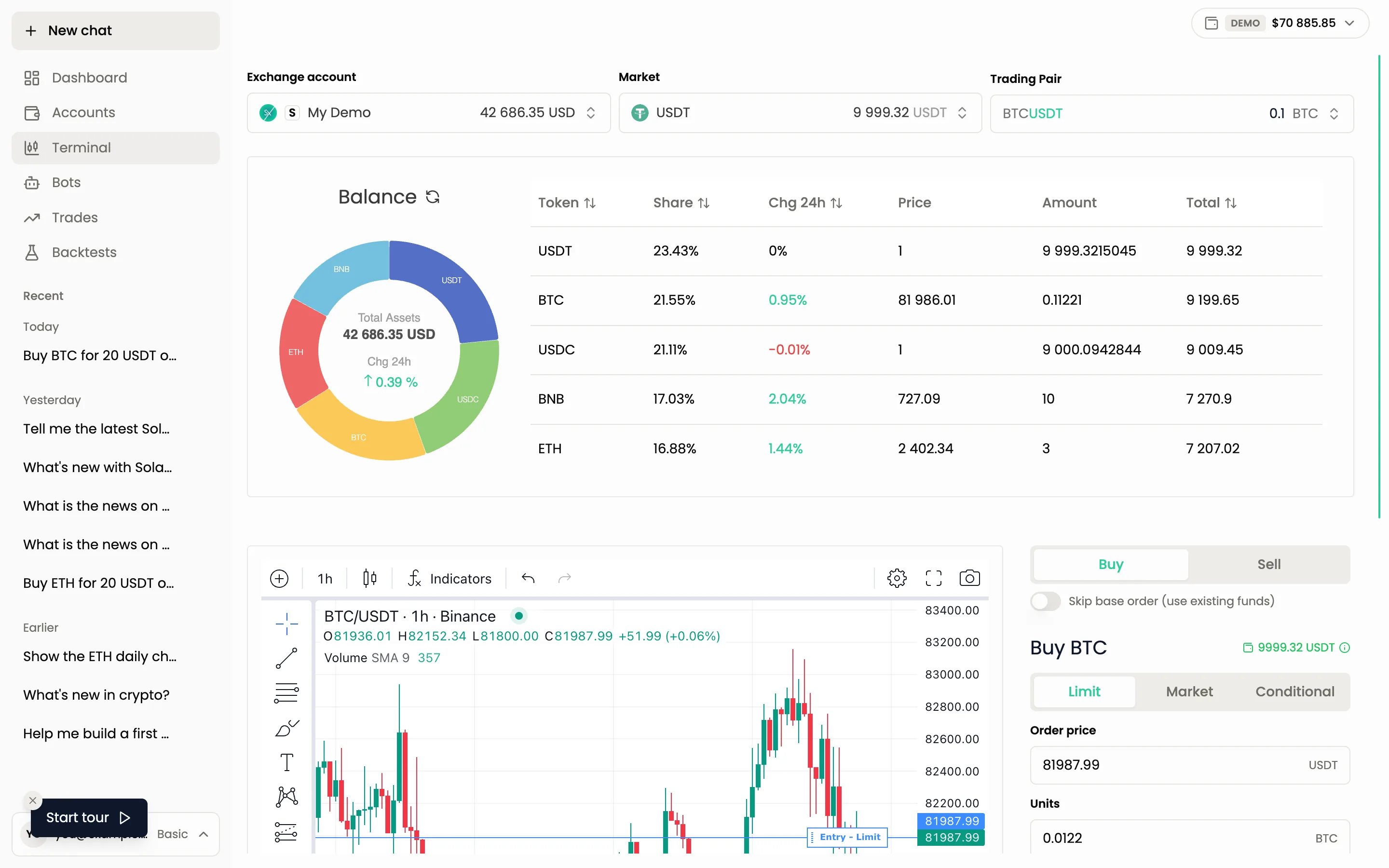
Entry order
Choose the order type with the three tabs:
| Type | How it works |
|---|---|
| Market | Buys or sells right away at the best available price |
| Limit | Waits until the price reaches the Order price you set |
| Conditional | Waits for a Trigger price, then places a limit or a market order. The trigger watches the Last, Bid or Ask price |
Set the size in Units (the amount of the coin) or in Total (the amount in the quote currency, for example USDT). A slider sets the size as a percent of your balance. On futures the buttons read Long and Short instead of Buy and Sell, and a Leverage field with Isolated or Cross appears. See Futures.
Take profit
Take profit takes one or more targets. Each target is a Limit order or a conditional market order (Cond.market), and each has a Volume, the share of the position it closes. Use Add target to add one and Split target to divide it. The Average switch moves your take profit automatically when the entry price changes after averaging, so the profit percent stays the same.
Stop loss
Stop loss is a conditional order: Cond.Limit (a limit order after the trigger) or Cond.market (a market order after the trigger). A market stop is more certain to fill. A limit stop protects you from a bad fill, but in a fast move the price can jump past it and the order stays unfilled.
Average (DCA)
Average (DCA) adds averaging orders below your entry (above it for a short). Press Add entry for each one and set its price and size, as a Limit, Cond.market or Cond.limit order. If the price falls, the order fills and your average entry price improves. More on averaging in Strategy builder, where the same idea runs automatically.
Skip base order
Turn on Skip base order (use existing funds) if you already hold the coin and only want the exits. The trade then starts from the position you have, and the take profit and stop loss are placed for it.
Create the trade
Press Create trade. The Confirm your trade window shows the entry, take profit and stop loss with the mode banner. Check it and press Confirm.
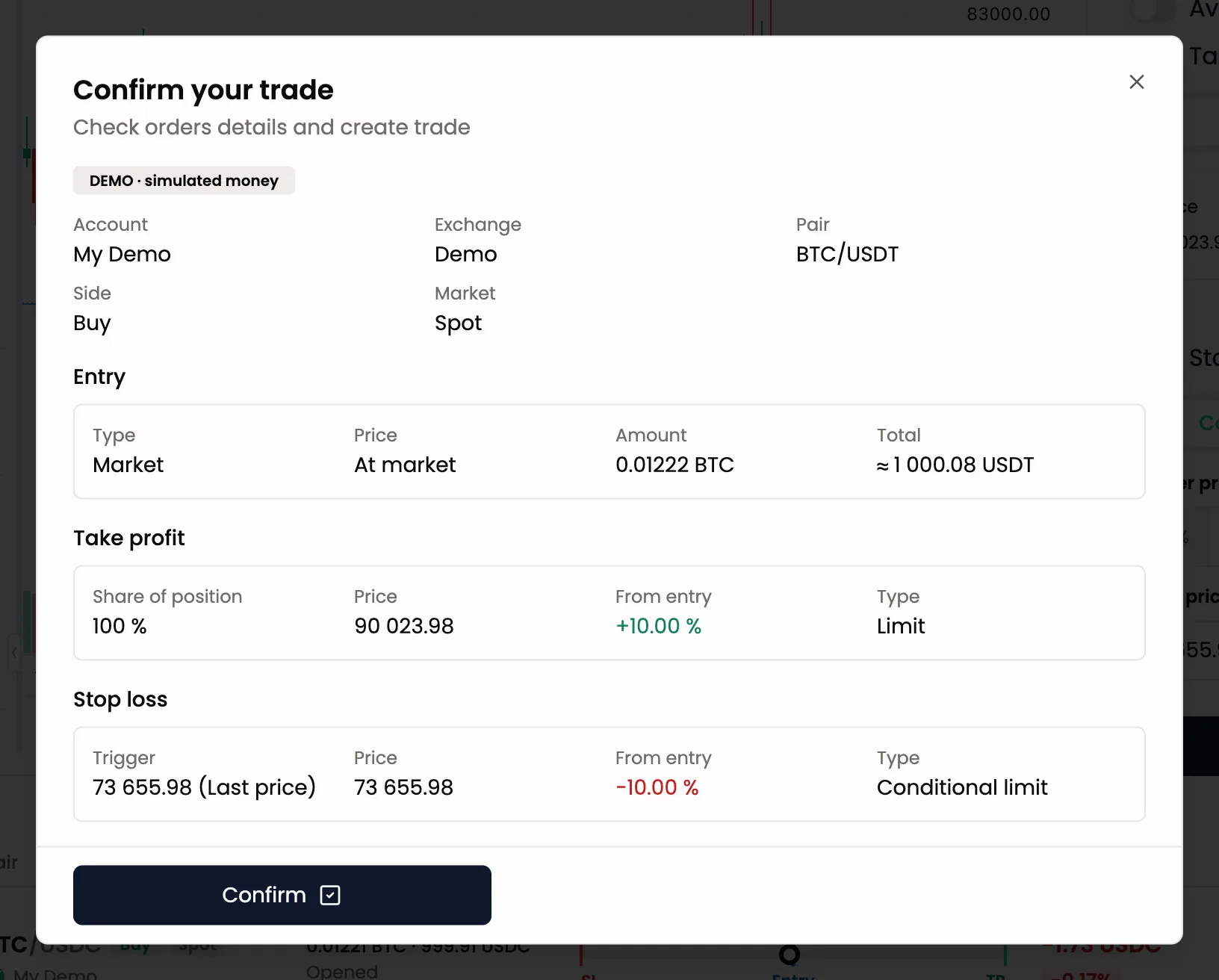
After the trade is open
An active trade appears in the list under the order form with a ruler showing the price between your stop loss and your targets.

To add funds, close, edit or cancel it, read Managing trades.
Common questions
Why was my order rejected? Usually the size is below the exchange minimum, the balance is too small or the price breaks an exchange rule. The card and the review window show these checks before you approve.
Why is the fill price different from the card? Market orders fill at the price available at that moment. Limit orders fill at your price or better.
Do trades count against my plan? Open smart trades on real accounts count against the limit. Demo trades do not. See Plans and limits.
Still have a question?
Ask the agent in the app, or write to support in the chat at the bottom right.