
Strategy builder bot
Build a bot from indicator rules without code: entry rules, averaging, take profit, stop loss, risk presets, backtest and launch. Or ask the agent to draft it.
The strategy builder lets you describe a trading idea as rules and turns it into a bot. You pick indicators from a catalogue of more than 150 indicators and candlestick and chart patterns, combine them with AND, OR and NOT, and the platform checks the rules as candles close. No code is needed.
You can fill in the screen yourself, or ask the agent to draft the bot and then open the draft in the builder to adjust it.
Ask the agent to draft it
Build a bot that buys BTC when RSI on 1h drops below 30, with a 3% take profit and a 2% stop loss
The agent writes the entry rules, the take profit, the stop loss and the money settings, and checks them against the catalogue. It then shows a draft. Nothing is created yet. When you agree, the agent shows a confirmation card, and after you approve, the bot is created switched off. A second confirmation starts it. You can open the draft in the builder at any point.
The screen
Open Bots, press Add new and choose Strategy builder.
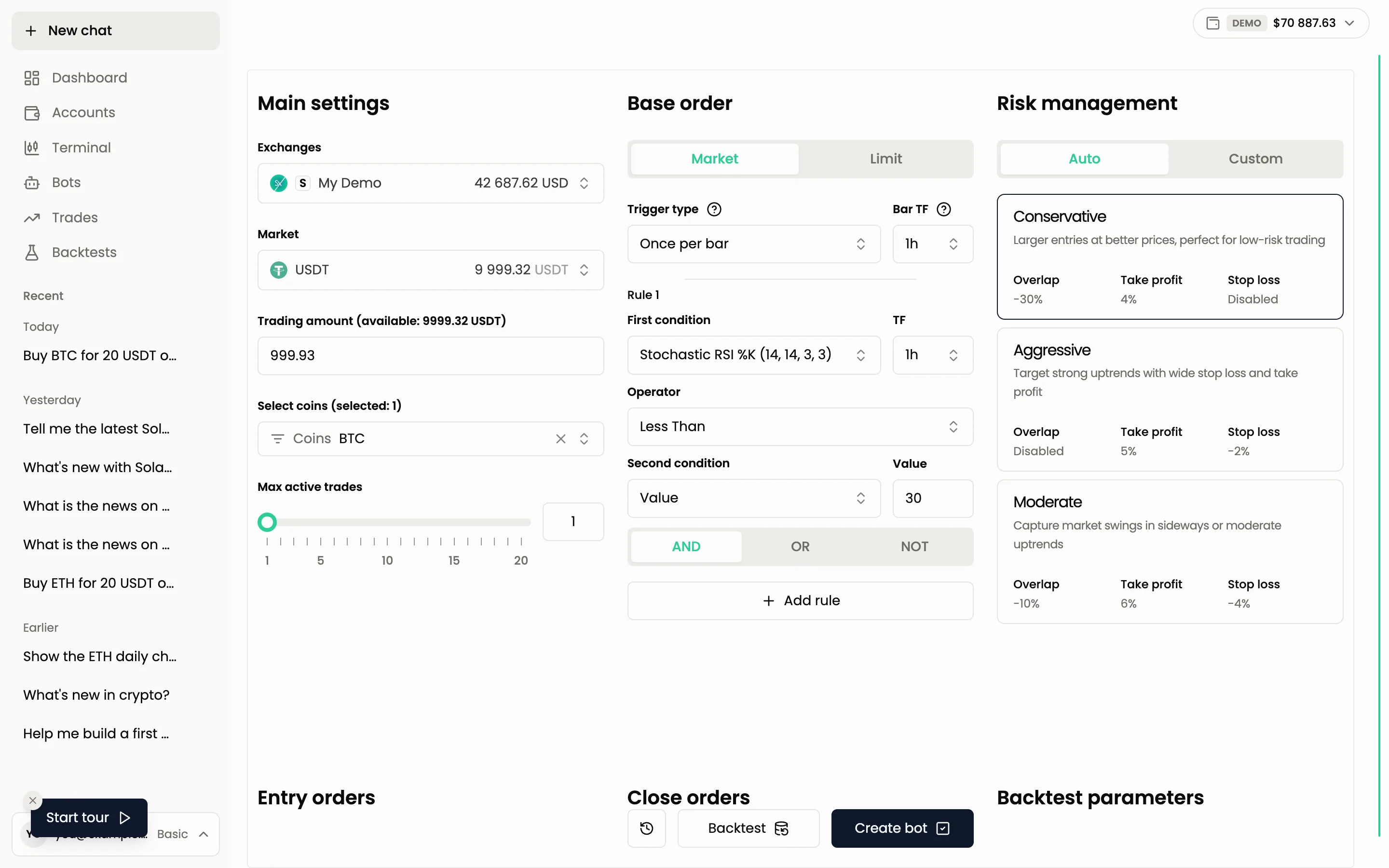
Main settings
- Exchanges: the exchange account. Pick its futures entry for a futures bot.
- Market: the quote currency, for example USDT.
- Trading amount: the money the bot manages. Make sure it is available on the account. It is shared between the open deals: with Max active trades 2, each deal gets about half.
- Coins: which coins the bot may trade. You can pick several.
- Max active trades: how many deals can be open at once.
- For futures: the direction (Long or Short), Leverage and Margin mode. See Futures.
Base order
The base order is the entry. Choose Market or Limit, then set the rules that open it.
- Trigger type: conditions are always calculated on closed bars of their own timeframe. Once per bar checks the rule each time the bars of the condition timeframes close and fires at most once per Bar TF bar. Once per bar close checks the rule only when a Bar TF bar closes.
- Bar TF: the timeframe that limits how often the rule can fire. Bars follow UTC, so 4h bars start at 00:00, 04:00, 08:00 UTC.
- Rule: a condition is built from a First condition (an indicator or the price), an Operator and a Second condition (another indicator or a Value). Each indicator has its own timeframe.
Operators are Cross Above, Cross Below, Greater Than, Less Than, Greater or Equal, Less or Equal, Equal and Not Equal. Pattern indicators, such as a candlestick pattern, fire on their own and need no operator.
Join conditions with AND (all must be true), OR (any can be true) and NOT (inverts the result). Add several rules to build a longer logic.
Example: Trigger type Once per bar close, Bar TF 1h, First condition RSI (1h), Operator Less Than, Value 30.
Average (DCA)
Averaging orders buy more when the price moves against the trade, which lowers your average entry price. Set:
- Order count: how many averaging orders (safety orders) the bot may place.
- Price step: the distance in percent from the entry to the first averaging order, and from each order to the next.
- Order size multiplier: how much larger each next order is. At 1.0 all orders are equal, above 1.0 each is bigger.
- Price step multiplier: how much wider each next step is. Above 1.0 the orders spread out.
Averaging can also work by rules instead of price steps. Use it with care: it increases the amount at risk when the price keeps falling.
Take profit and stop loss
Each of them has two modes: Price change and Rules.
- Price change: a percent from the entry price. A take profit can have several targets, each with its own share of the position. A stop loss is one percent level, and it can be a market or a limit order.
- Rules: the exit fires when conditions you build with the same rule editor are met, for example "close price crosses below EMA 200".
Risk management
The Risk management block has two tabs, Auto and Custom. Auto offers three ready presets that fill in the averaging, take profit and stop loss for you:
| Preset | Overlap | Take profit | Stop loss | Idea |
|---|---|---|---|---|
| Conservative | -30% | 4% | Disabled | Averaging with widening entries, low-risk accumulation |
| Moderate | -10% | 6% | -4% | Swing trading with distributed entries |
| Aggressive | Disabled | 5% | -2% | Momentum trading with a high reward-to-risk ratio |
Overlap is how far below the entry price the averaging orders reach in total. With -30%, the last averaging order sits about 30% below the entry. The preset picks the number, size and spacing of the averaging orders so that they fit your trading amount and the exchange minimum order size. Disabled means the preset places no averaging orders. For a short bot the signs are reversed.
Choose Custom to set everything yourself.
Backtest, then create
Press Backtest to run the strategy on historical data before you risk money. Read Running a backtest and Reading the results.
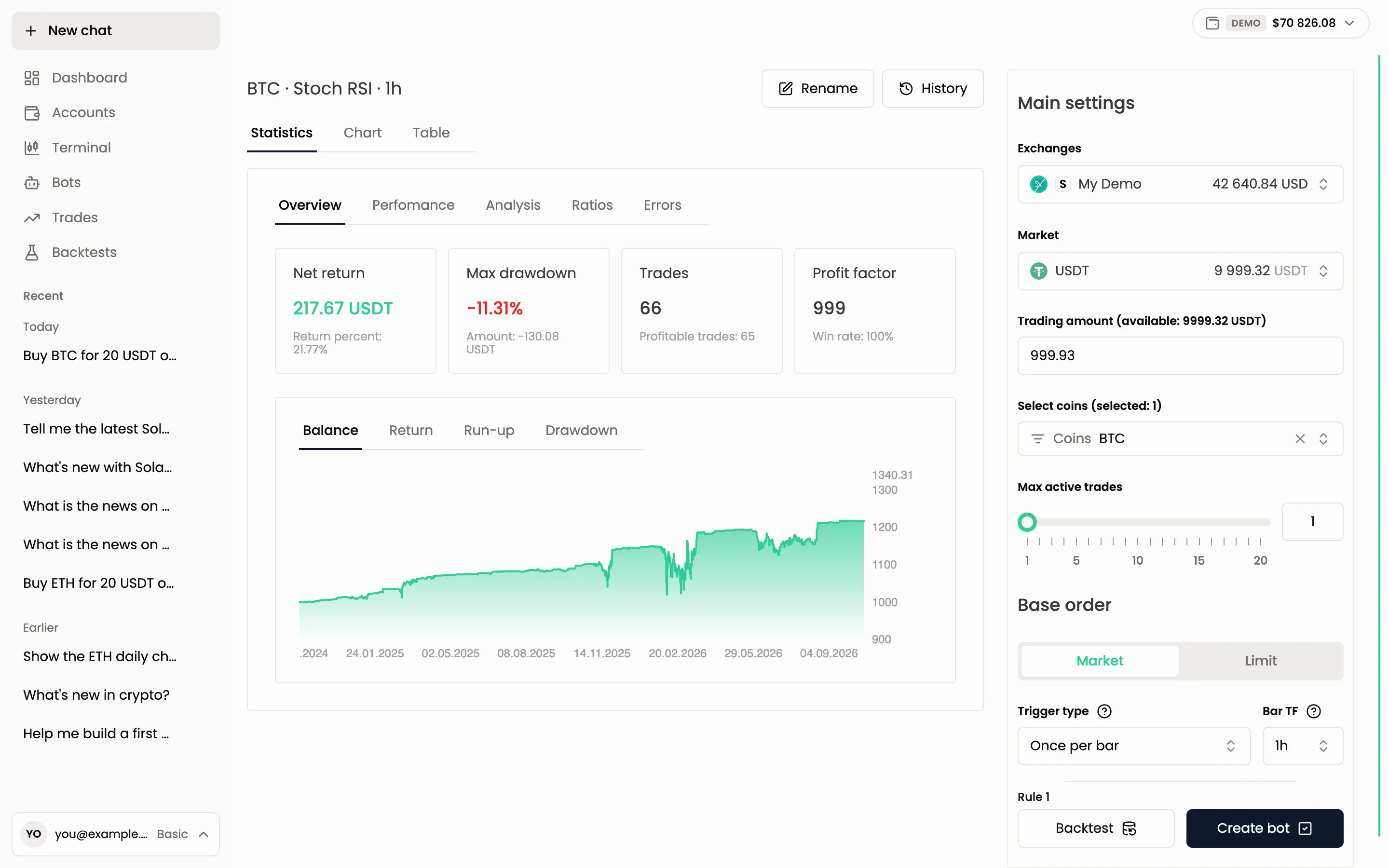
When you are happy, press Create bot, give the bot a name and press Confirm. The bot is created switched off, and the app opens its page. Press Start there to run it. Your plan limits the number of running bots on real accounts, and demo is unlimited. See Plans and limits.
To test a bot you already have, open it with Edit bot and press Backtest.
If a rule does not work
- Value is not available. With several coins selected, a price indicator (open, high, low, close) cannot be compared with a fixed number, because one number would mean a different price for each coin. Compare it with another indicator instead.
- The bot never opens a trade. Open the bot page and look at the rule check status: it shows when the rules were last checked and what is missing, for example no data.
- Timeframes do not line up. Timeframes checked together should fit into the largest of them a whole number of times. 4h and 6h meet only every 12 hours.
More about bots in general: How bots work.
Still have a question?
Ask the agent in the app, or write to support in the chat at the bottom right.