
Accounts
Your connected exchange accounts: balances, trading shortcuts, API key updates, and how to switch between demo and real money.
The Accounts section shows one card for every exchange account you have connected, plus the demo account if you use it. From here you can see balances, jump to trading, open an account's own dashboard, update an API key or remove an account.
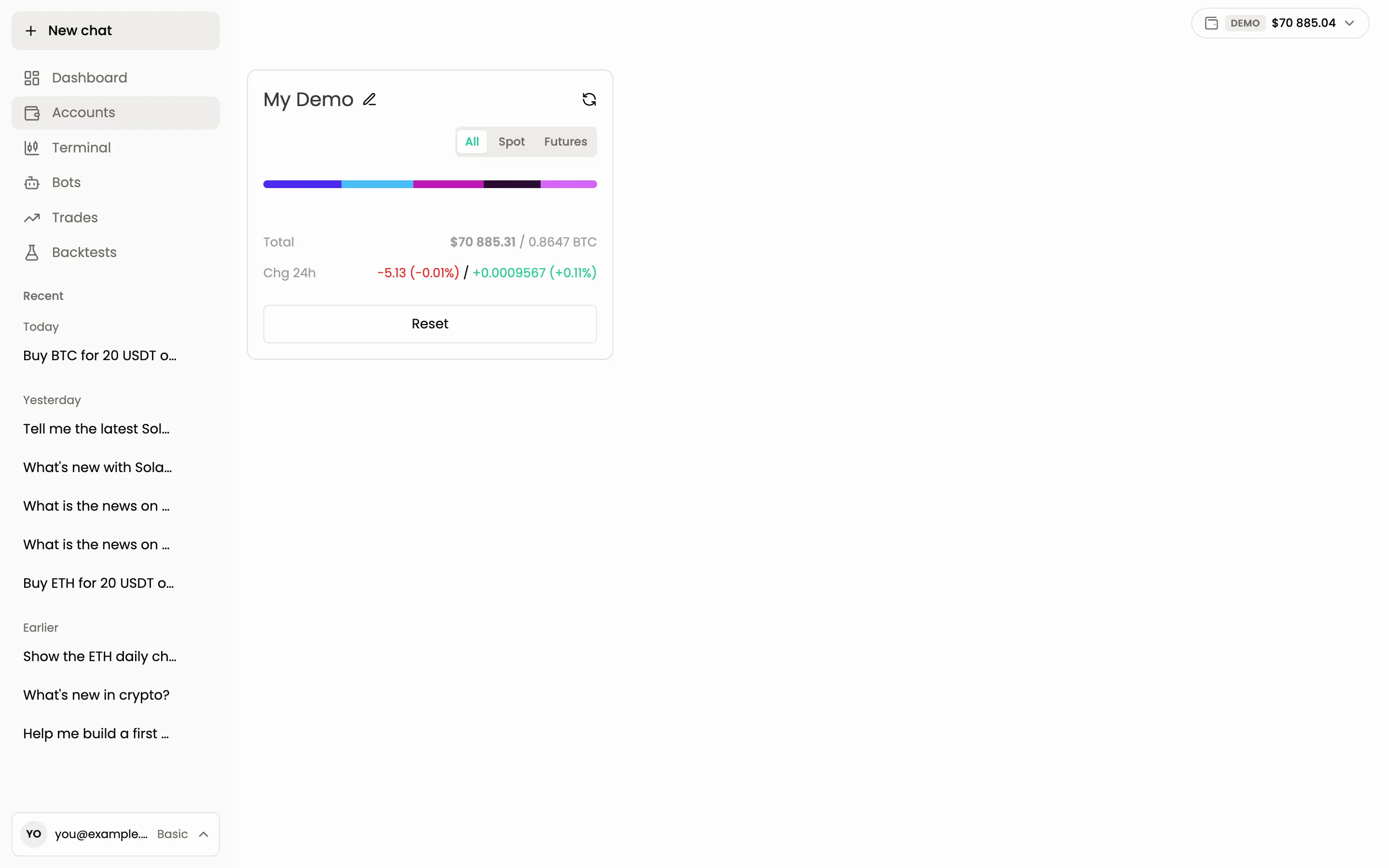
What is on a card
- The name of the account. Click the pencil next to it to rename it.
- All, Spot, Futures: a filter that changes which balances the card shows. A spot and futures pair of one exchange counts as a single account, so both markets sit on the same card.
- A colour bar with the share of each asset.
- Total: the balance in dollars and in BTC, and Chg 24h, the change over the last 24 hours.
- The round arrow in the corner refreshes the balances.
If the balance of a real account is below $10, the card shows a warning: Balance is less than $10. Deposit funds to start trading. Orders need free funds, so deposit on the exchange first.
For futures accounts on exchanges with a unified account, the card has a margin mode switch. It sets the margin mode for the whole account, so changing it affects existing bots and open positions. Turning it on sets Cross, turning it off sets Isolated.
Buttons on a card
| Button | What it does |
|---|---|
| Trade | Opens the Terminal with this account selected |
| View | Opens the dashboard of this one account: the same statistics as the Dashboard, narrowed to it |
| Menu Update API Key | Lets you paste a new key when the old one expired, was deleted on the exchange or lost permissions |
| Menu Delete | Removes the account from Skyrexio. Your funds stay on the exchange |
| Reset | Demo account only (the demo card has no other buttons). Removes the current demo account and creates a fresh one with the starting virtual balance |
Deleting an account also deletes the bots linked to it and cancels its open trades on Skyrexio. If you want to close positions on the exchange, do it before you delete the account.
Connecting a new exchange
The last card in the list is a + card. It opens the connection window. See How to connect an exchange. In demo mode the + card is hidden, because the demo account is a single ready-made account.
The balance chip and the accounts panel
At the top right of every screen there is a chip with your balance. A Demo badge appears on it when demo mode is on. Click it to open the accounts panel.
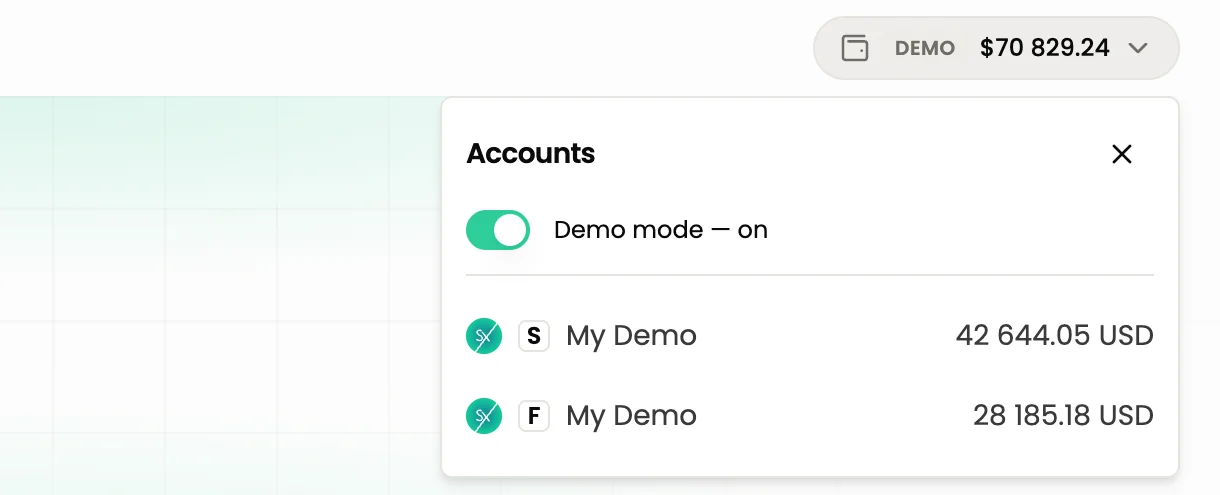
The panel has:
- the Demo mode toggle. Turning it on creates the demo account if you do not have one yet and switches the whole app to virtual money. Turning it off returns you to your real accounts. The assistant also sees only the current mode;
- the list of accounts of the current mode with their balances;
- the Connect an exchange button, in real mode only.
Check the badge on the chip before you ask the agent to trade. Demo means virtual money, no badge means real money.
Ask the agent instead
Show my accounts and balances
Connect Binance
The agent answers with a Connect an exchange right here button that opens the connection window. API keys are entered in that window, never in the chat.
Common questions
I connected an exchange but see only spot. Futures appear only if futures trading is enabled on the exchange side. See How to connect an exchange.
How many accounts can I connect? It depends on your plan. See Plans and limits.
Next: Terminal, Supported exchanges.
Still have a question?
Ask the agent in the app, or write to support in the chat at the bottom right.