
Alert bot (TradingView)
Turn TradingView alerts and any webhook into trades. How to create the bot, copy the alert message and webhook URL, and connect an indicator, a Pine Script strategy or your own script.
An alert bot trades on signals that come from outside Skyrexio. Your TradingView indicator or strategy, or a script of your own, sends a message to a webhook URL, and the bot opens or closes a trade on your exchange account. Use it when you already have a strategy on TradingView or want full control over the signal.
You do not need to write the message yourself. The alert bot screen gives you a ready JSON template and the webhook URL, and you paste them into TradingView.
Create the bot
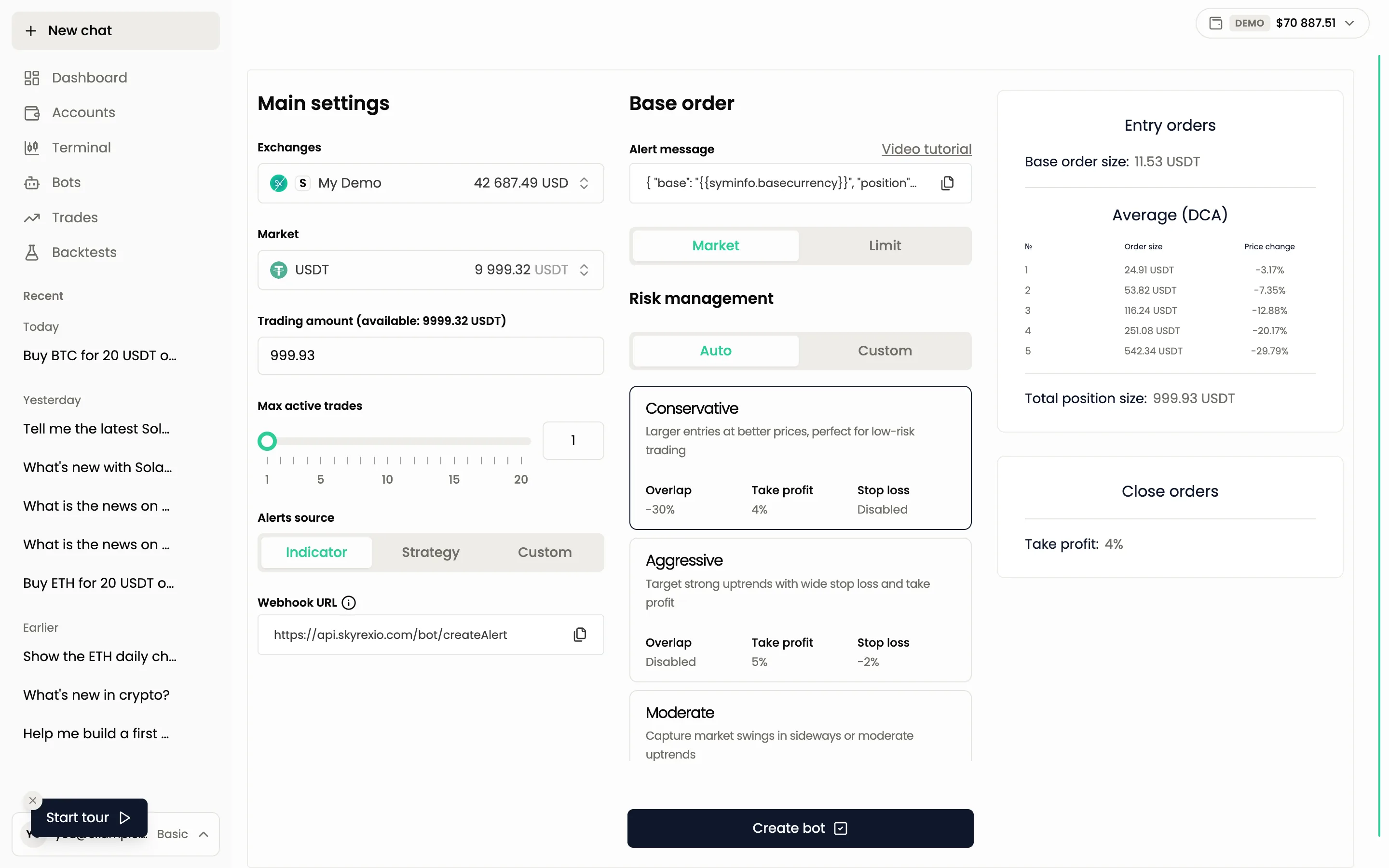
- Open Bots, press Add new and choose Alert bot.
- Pick the exchange account in Exchanges and the quote currency in Market, then set the Trading amount and Max active trades.
- Choose the Alerts source: Indicator, Strategy or Custom. The screen then shows the Webhook URL and the texts to copy for that source.
- Set the base order type and the risk management.
- Press Create bot, give the bot a name and press Confirm. The bot is created switched off, and the app opens its page.
- Set up the alerts in TradingView (below), then press Start on the bot page.
You can also ask the agent: "Set up an alert bot for ETH on my Binance account with a 5% take profit and a 2% stop loss". The agent prepares the settings and shows a confirmation card. After you approve, the bot is created switched off, and starting it takes a second confirmation.
Set up an alert bot for SOL with a 100 USDT trading amount, 4% take profit and 2% stop loss
The alert message and the webhook URL
Two things connect TradingView to your bot:
- Webhook URL: the address that receives the signals, one for all actions of the bot. Copy it with the copy button on the alert bot screen. At the time of writing it is
https://api.skyrexio.com/bot/createAlert. - Alert message: a JSON text that tells the bot what to do. It contains the coin, the action, the price and two keys that identify your bot (
sourceUuidandsecretToken).
A message for the first entry looks like this. Copy it from the app, because it has your own keys:
{
  "base": "{{syminfo.basecurrency}}",
  "position": "entry1",
  "price": "{{close}}",
  "sourceUuid": "your bot key",
  "secretToken": "your bot token",
  "timestamp": "{{timenow}}"
}
The position field decides the action: entry1 opens the trade, entry2 and the following add averaging entries, and close closes the position. The {{...}} parts are TradingView placeholders that it fills in when the alert fires.
After the bot is created, you find the same URL and texts on its page: open the menu next to Start and choose Alert messages.
The secret token is the key to your bot. Anyone who has it can send signals to the bot. Do not post it in public places.
Connect an indicator
- With Indicator as the source, copy the Webhook URL and the Alert message for opening a trade.
- In TradingView open a chart of the coin, add the indicator and set the timeframe.
- Press Alert, choose the indicator as the condition.
- On the notifications tab, turn on Webhook URL and paste the URL.
- Paste the alert message into the Message field and create the alert.
For each additional entry, create one more alert with entry2, entry3 and so on in place of entry1. If the bot closes trades by alert, create an alert with the closing message ("position": "close").
Connect a Pine Script strategy
- Choose Strategy as the source and copy the Webhook URL, the Entry function parameter, the close function parameter and the alert message.
- In TradingView add your strategy to the chart. If it is a community script, create a working copy so that you can edit it.
- Add the copied parameter to the entry and close functions of the script and save it.
- Press Alert, choose the strategy as the condition, paste the Alert message and the Webhook URL.
For Pine Script v4 strategies, replace str.tostring with tostring in the parameter.
Connect your own script
Choose Custom and send an HTTP POST request with the JSON body to the webhook URL from any service. The fields are:
| Field | Meaning |
|---|---|
base | The coin to trade, for example ADA |
position | entry1, entry2 and so on for entries, close to exit |
price | The execution price. For market orders use the current price |
sourceUuid | The unique identifier of your bot |
secretToken | The protection token of your bot |
timestamp | The current time in UNIX format |
You can test a request by hand with a tool like Postman before you connect a real source.
Orders and risk management
Choose Market or Limit for the base order. For the risk management you have Auto with the Conservative, Moderate and Aggressive presets (see Strategy builder for what they mean), or Custom. Custom has two tabs:
- Price change: averaging orders, take profit and stop loss are placed at fixed price distances from the entry.
- Alert: your signals add the averaging entries (
entry2,entry3and so on) and close the position (theclosemessage).
Check that it works
Open the bot page. It shows the bot statistics, its trades and the Recent alerts block with the number of alerts received. You can also ask the agent "Show the latest signals of my alert bot". If a signal arrived but no trade opened, check the usual causes: the bot is switched off, the limit of active trades is reached, the trading amount is below the exchange minimum or the account has too little free balance. You can paste the error text into the chat and the agent will explain it.
Test the bot on the demo account first. TradingView needs a plan that supports webhook alerts, which is a TradingView requirement, not a Skyrexio one.
Next: How bots work and Running a backtest.
Still have a question?
Ask the agent in the app, or write to support in the chat at the bottom right.