
How to connect an exchange
Connect your exchange account in about 10 seconds with fast connect, or with an API key, and what to do when something goes wrong.
To trade on your own money, Skyrexio needs access to your exchange account through its API. There are two ways to give it: fast connect, where the exchange creates the key for you, and a manual API key. Neither lets Skyrexio withdraw funds. Your money stays on the exchange.
Open the connection window
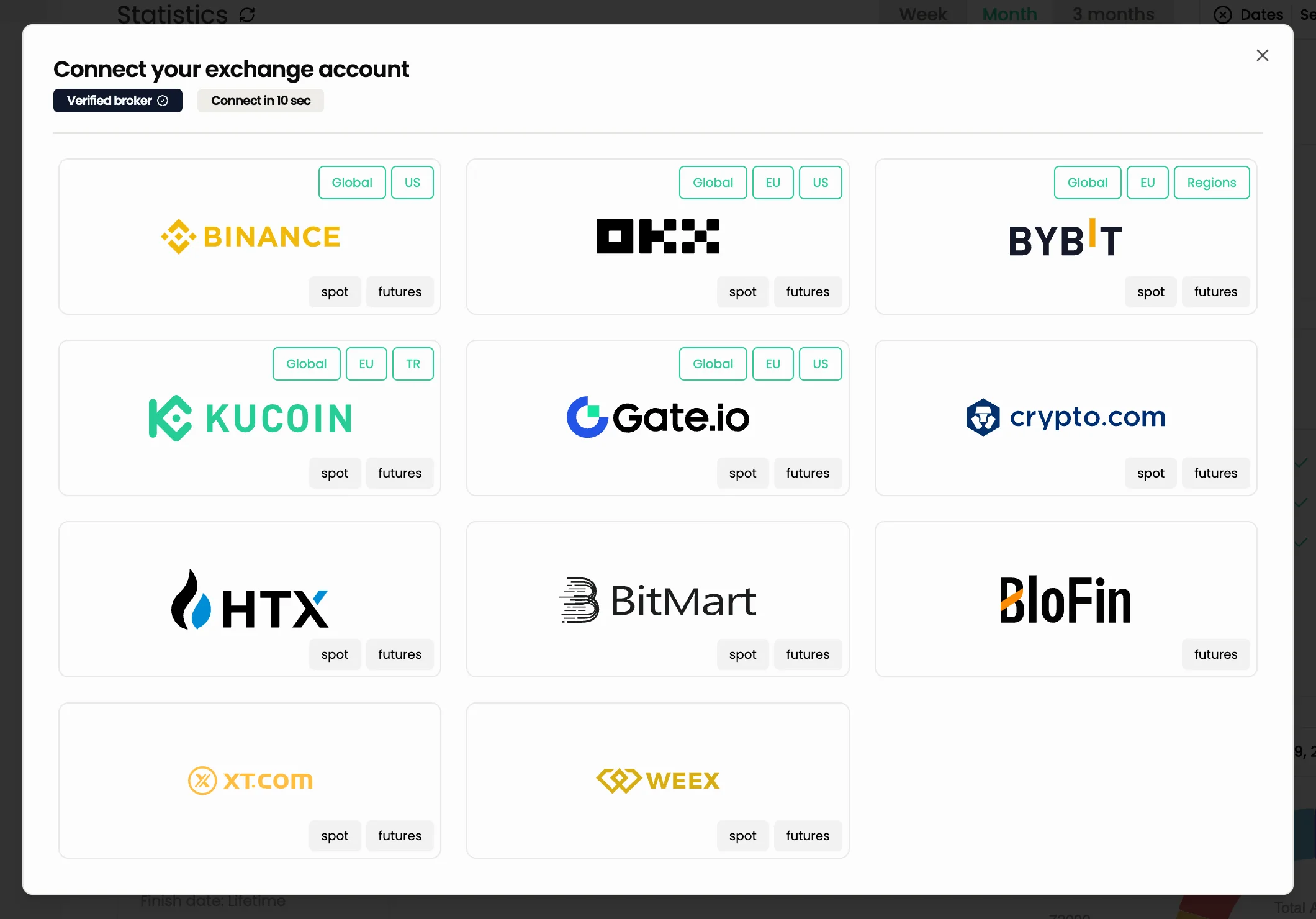
Any of these opens the same window, Connect your exchange account:
- the + card at the end of the list in Accounts;
- the Connect an exchange button in the accounts panel at the top right;
- the Connect an exchange button on the start screen of a new account;
- a message to the agent, for example "connect Binance": the agent answers with a Connect an exchange right here button.
Connect Binance
The window shows a card for each exchange with the markets it supports. Click the exchange you want. If you do not have an account there yet, use the Create link after Don't have an exchange account? under the title of the exchange window: it opens the exchange sign-up.
Option 1: Fast connect
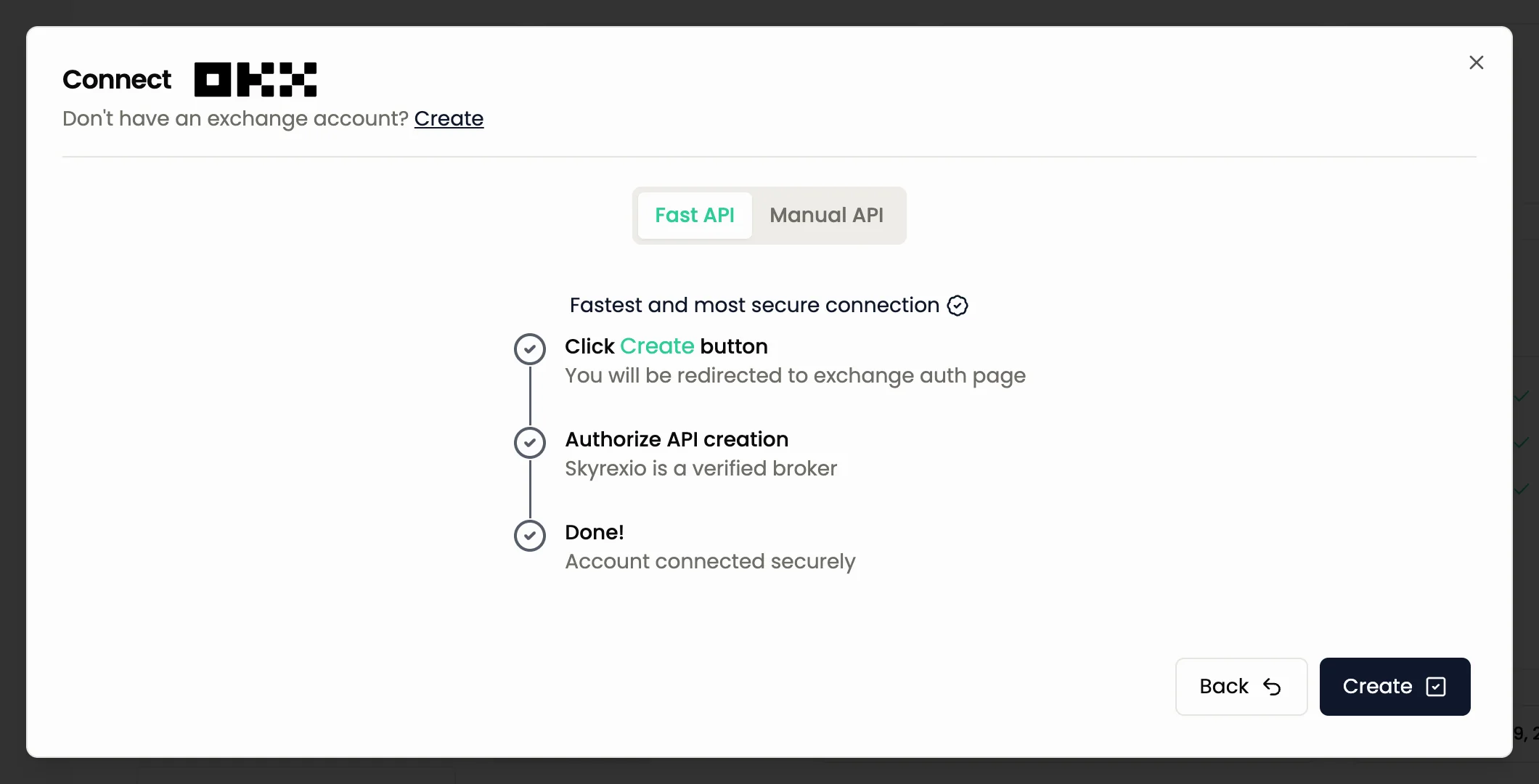
Open the Fast API tab. It is available for most exchanges, see Supported exchanges.
- Press Create. You are sent to the exchange site.
- Log in there if needed and allow automatic creation of API keys.
- You return to Skyrexio and the account is connected.
Option 2: API keys
Open the Manual API tab. Use it when fast connect is not available for the exchange, or when you prefer to manage keys yourself.
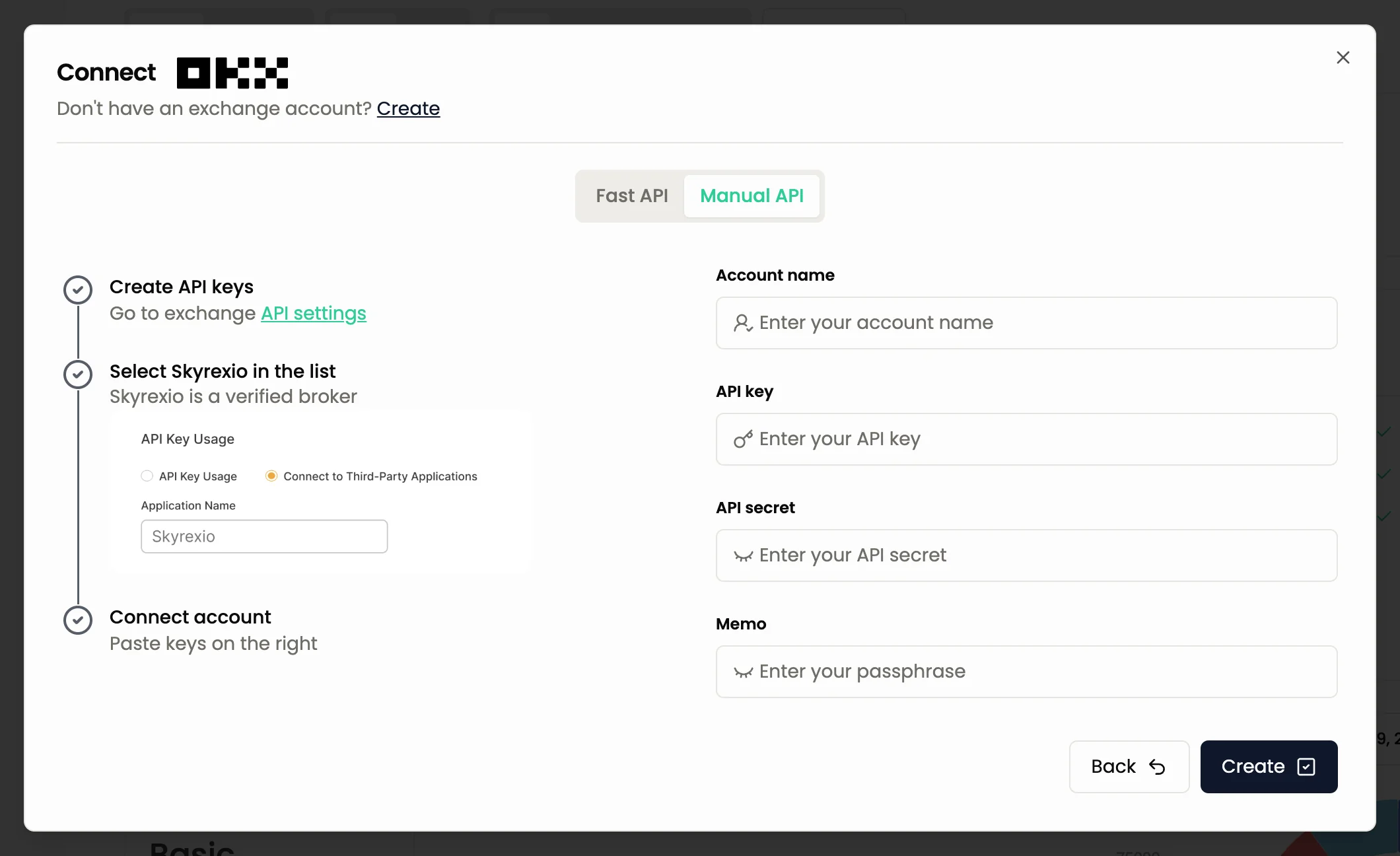
- Create an API key on the exchange. The window shows short instructions, with a link to the full guide. The detailed steps are in Creating an API key.
- Fill in the fields:
- Account name: any name you like, to tell your accounts apart.
- API key and API secret: copied from the exchange.
- Memo (OKX, KuCoin, BloFin, WEEX and BitMart): the extra secret you set when you created the key. The field is labelled Memo on all five: on OKX, KuCoin, BloFin and WEEX type your passphrase into it, on BitMart your memo.
- On Binance, Gate.io, HTX, BitMart, XT and WEEX the window also shows a list of IP addresses. Copy them into the IP whitelist of your key on the exchange.
- Press Create.
Give the key only read and trading permissions. Never enable withdrawals.
What happens next
The account appears in Accounts. Its futures market is connected as well if futures trading is enabled for your account on the exchange, and both markets sit on one card. If you only see spot, enable futures on the exchange, then update the key or reconnect. A spot and futures pair counts as one account in your plan limit. BloFin has futures only.
You can now trade in the Terminal, create bots, or ask the agent to show your balances.
Troubleshooting
Invalid or wrong passphrase. The passphrase must be exactly the one you typed when you created the key on the exchange. It cannot be recovered. If you forgot it, create a new key.
IP whitelist error. If the key has an IP whitelist, it must contain every address from the connection window. Add the missing ones on the exchange, save and try again.
Permission error. The key needs read access and trading access for the market you use: spot, futures or both. Edit the key on the exchange and tick the missing permission. Some exchanges require a new key for that.
Key expired or deleted. A key stops working if it was deleted on the exchange, and on some exchanges a key without an IP whitelist expires after a while. Open Accounts, open the menu of the account card, choose Update API Key and paste the new key. The account, its history and its bots stay as they are.
Fast connect failed. Try again, or switch to the Manual API tab and use a key.
Next: Creating an API key, Accounts.
Still have a question?
Ask the agent in the app, or write to support in the chat at the bottom right.