
Your first session
What you see when you open the AI mode for the first time, what to ask first, and which things work before you connect any account.
When you open Skyrexio for the first time, the chat greets you with a start screen. What it shows depends on one thing: whether you already have an account, demo or real.
If you have no accounts yet
The screen says Let's get started and offers two buttons:
- Try it on demo: simulated money, nothing to connect. The demo account is created in one click and you can start trading at once. See Demo trading.
- Connect an exchange: free, with up to 3 bots and 3 open trades on your real account. A window opens where you pick your exchange and connect it. See Connect an exchange.
You do not need an account to look around. Charts, market news and backtests work without one, so you can ask the agent about the market before you decide anything.
Show me the BTC chart on the daily timeframe with support and resistance levels
If you have an account but no trades
The start screen first asks three short questions: your experience, your goal and how much risk you accept. Answer them and press Done, or press Skip. Your answers choose which first steps the screen suggests, and they are saved in memory so the agent can adjust its suggestions to you. You can see and delete them at any time in Settings.
Then you see Three ways to get a first result, three cards you can press instead of typing:
- analyse BTC and set up a trade;
- read BTC on the chart;
- build a bot and backtest it, or backtest a strategy.
Pressing a card sends that request to the agent, exactly as if you had typed it.
What to ask first
The safest start is something that cannot lose money:
- Look at the market. Ask for a chart or the news about a coin you follow.
- Check your account. "Show my balances" lists what you hold in the current mode.
- Test an idea. Ask for a backtest of a simple rule and read the result before any money is involved.
- Prepare a trade on demo. Ask for a small order with a take profit and a stop loss. The agent shows a confirmation card, and nothing happens until you press Review and confirm and then Approve in the window that opens.
Start on demo even if you plan to trade real money. A few simulated trades show you how the cards, the side panel and the confirmations work.
What happens next
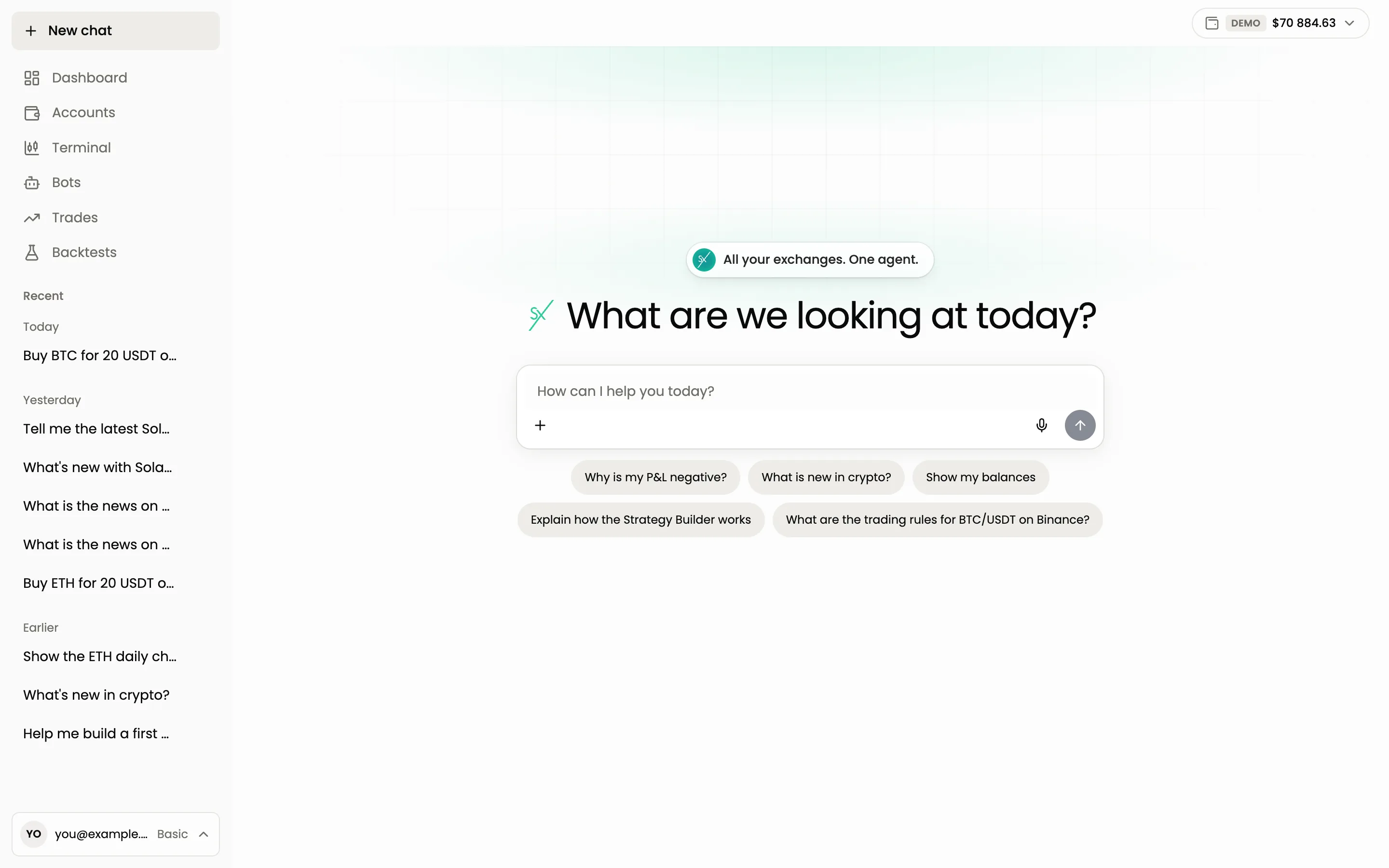
After the first session the start screen changes. Once you have trades, the empty chat shows a short greeting and a few suggested questions under the input, such as "What is new in crypto?" or "Show my balances". Your earlier conversations are in the Recent list in the sidebar.
Next steps
- How to ask the agent: phrasing that gets the result you want.
- Chat or buttons: the same tasks on regular screens.
- What the agent can do: the full list.
Still have a question?
Ask the agent in the app, or write to support in the chat at the bottom right.