
Trades
The trading diary: a journal of every trade from the Terminal and from bots, with filters, statuses and export.
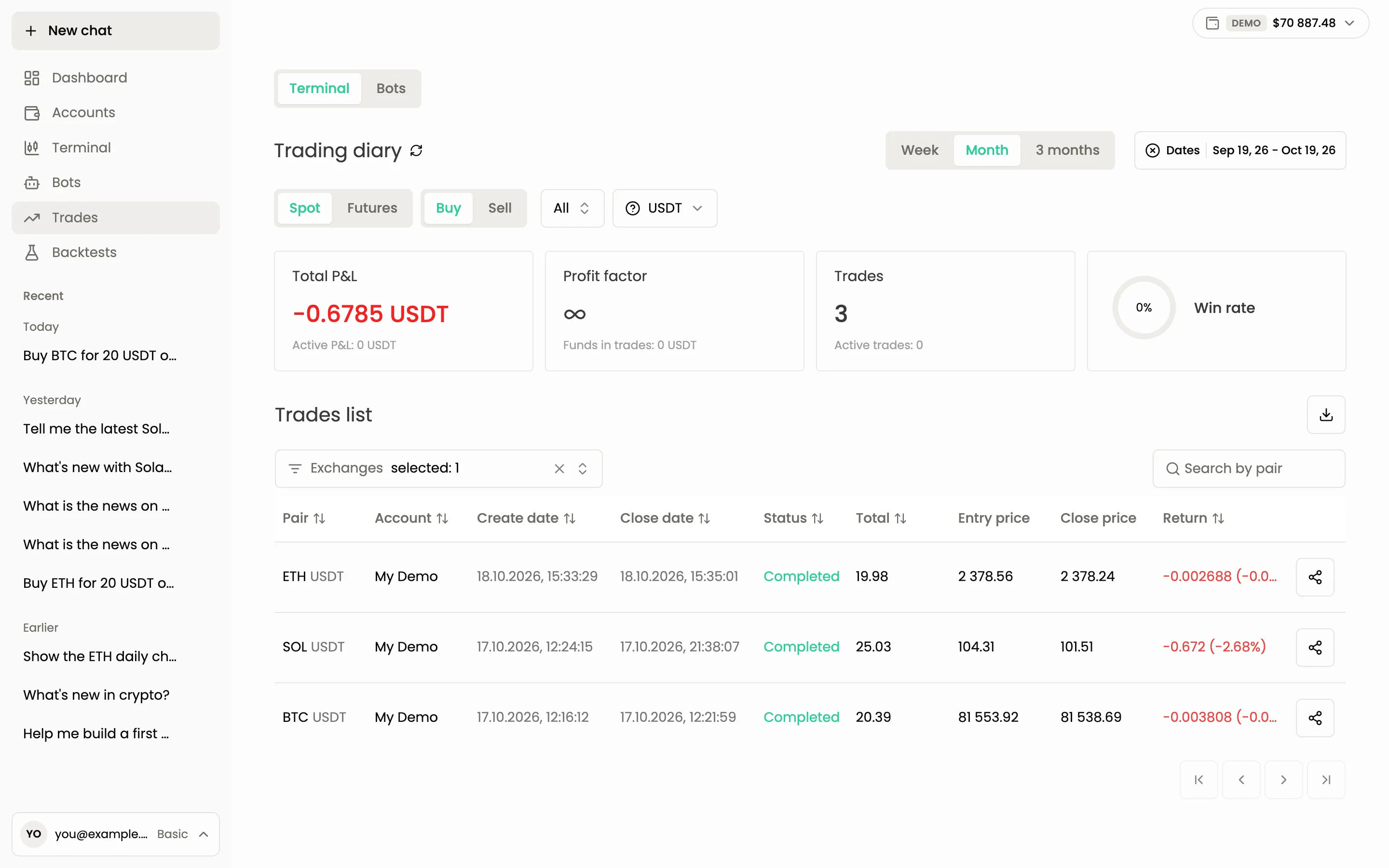
Trades is your trading diary. Every trade you open, whether by hand, through the assistant or by a bot, ends up here with its dates, prices and result. Use it to review what happened, check one pair, or export the history.
Terminal and Bots
The switch at the top left picks the source:
- Terminal: trades you opened in the Terminal or through the assistant.
- Bots: trades opened by your bots.
Each source has its own filters and columns, described below.
Filters
The filters above the summary cards change both the cards and the list.
- Week, Month, 3 months or exact Dates. Choose whether the dates apply to Create dates or Close dates.
- Spot and Futures.
- Buy and Sell (Long and Short on futures). For bots, the Strategy filter offers Long and Short.
- The exchange account selector, for example Exchanges selected: 1. For bots there is also a Bot selector.
- The currency selector, for example USDT.
- Status: All, Completed, Active, Cancelled. The bots journal also has Failed.
Summary cards
| Card | What it shows |
|---|---|
| Total P&L | Result of closed trades, with Active P&L of open ones under it |
| Profit factor | Gross profit divided by gross loss, with Funds in trades under it |
| Trades | Number of trades, with Active trades under it |
| Win rate | Share of profitable trades |
The trades list
The list is called Trades list. Use Search by pair to find one pair, and click a column title to sort.
For the Terminal source the columns are:
- Pair and Account
- Create date and Close date
- Status: Completed is a finished trade, Active is still open, Cancelled was cancelled
- Total: the size of the trade
- Entry price and Close price
- Return: profit or loss in money and in percent
For the Bots source the columns are Pair, Bot, Create date, Close date, Status, Total, Entry price, Close price, Entries (how many entry orders filled), Return and Return %.
The arrows under the list move between pages.
Export
The download button at the top right of the list exports the trades that match your filters. Set the period and filters first, then export.
Ask the agent instead
The agent reads the same history and can answer questions about it.
Show my closed trades for the last week and the total result
What was my worst trade this month and why did it lose?
Common questions
I do not see a trade I opened. Check the source switch (Terminal or Bots), the status filter and the dates. Also check that Demo mode matches the account the trade was on.
Why is a trade marked Cancelled? It was cancelled before it completed, for example by you with the Cancel action.
Next: Dashboard, Managing trades.
Still have a question?
Ask the agent in the app, or write to support in the chat at the bottom right.