
How bots work
A bot opens trades for you by signals. Two kinds exist: a strategy builder bot that reads indicators and an alert bot that follows TradingView or any webhook.
A bot is an automatic trader. You set the rules once, start it, and it opens trades on your exchange account whenever a signal appears, even while you are away. Each trade a bot opens is one smart trade with its own entry, take profit, stop loss and averaging orders, so everything you know about manual trades applies to bot trades too.
Two kinds of bots
| Strategy builder bot | Alert bot | |
|---|---|---|
| Where the signal comes from | Indicator conditions that the platform calculates itself | A TradingView alert or any service that sends a webhook |
| What you set up | Rules built from the indicator catalogue | An alert message and a webhook URL |
| Best for | Ideas you can state as rules, for example "RSI below 30 on 1h" | Strategies you already run on TradingView or scripts of your own |
| Page | Strategy builder | Alert bot |
A strategy builder bot needs nothing outside Skyrexio. An alert bot waits for a message from outside and acts on it.
How a bot trades
- A signal arrives: the rules of a strategy bot are met, or an alert reaches the webhook of an alert bot.
- The bot opens a deal. A deal is one smart trade, paid from the Trading amount you set.
- The trade runs on its own: averaging orders, take profit and stop loss work as you configured them.
- When the trade closes, the bot is free to open another deal on the next signal.
Max active trades limits how many deals a bot can hold open at the same time. With 1, the bot waits for the current deal to close before it starts a new one. The trading amount is shared between these deals: with 2, each deal gets about half. A bot can trade several coins at once, and the limit then decides how many of them can be in a deal together.
The bot trades only the amount you assigned to it, from the exchange account you chose. Make sure that amount is available on the account. If it is not, the exchange rejects the order.
Create a bot
There are two ways, and you can mix them.
Through the agent. Describe the bot in the chat. The agent drafts the rules and the settings, and a confirmation card shows the result. You can open the draft in the strategy builder to fine-tune it.
Build a bot that buys BTC when RSI on 1h drops below 30, take profit 3%, stop loss 2%
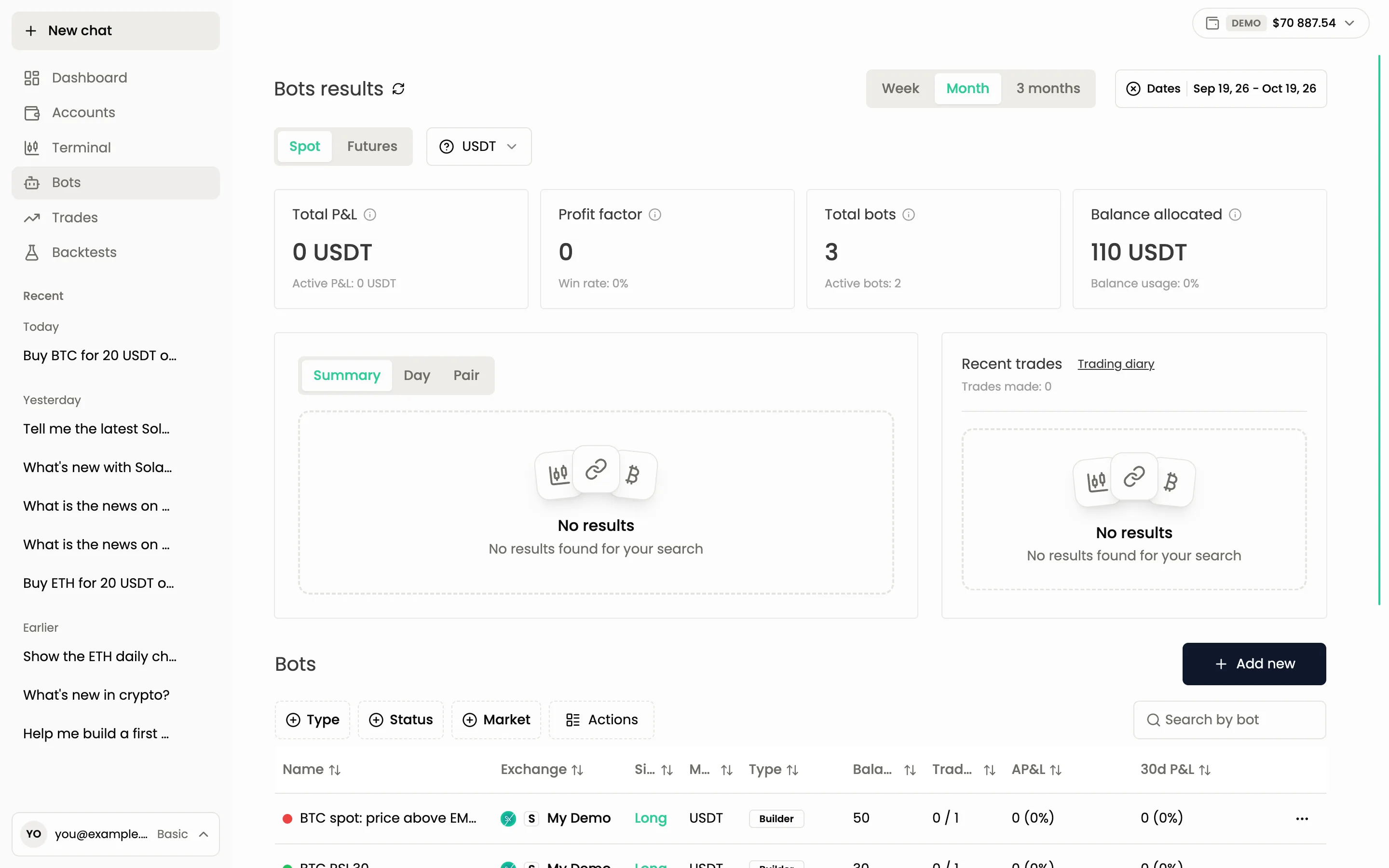
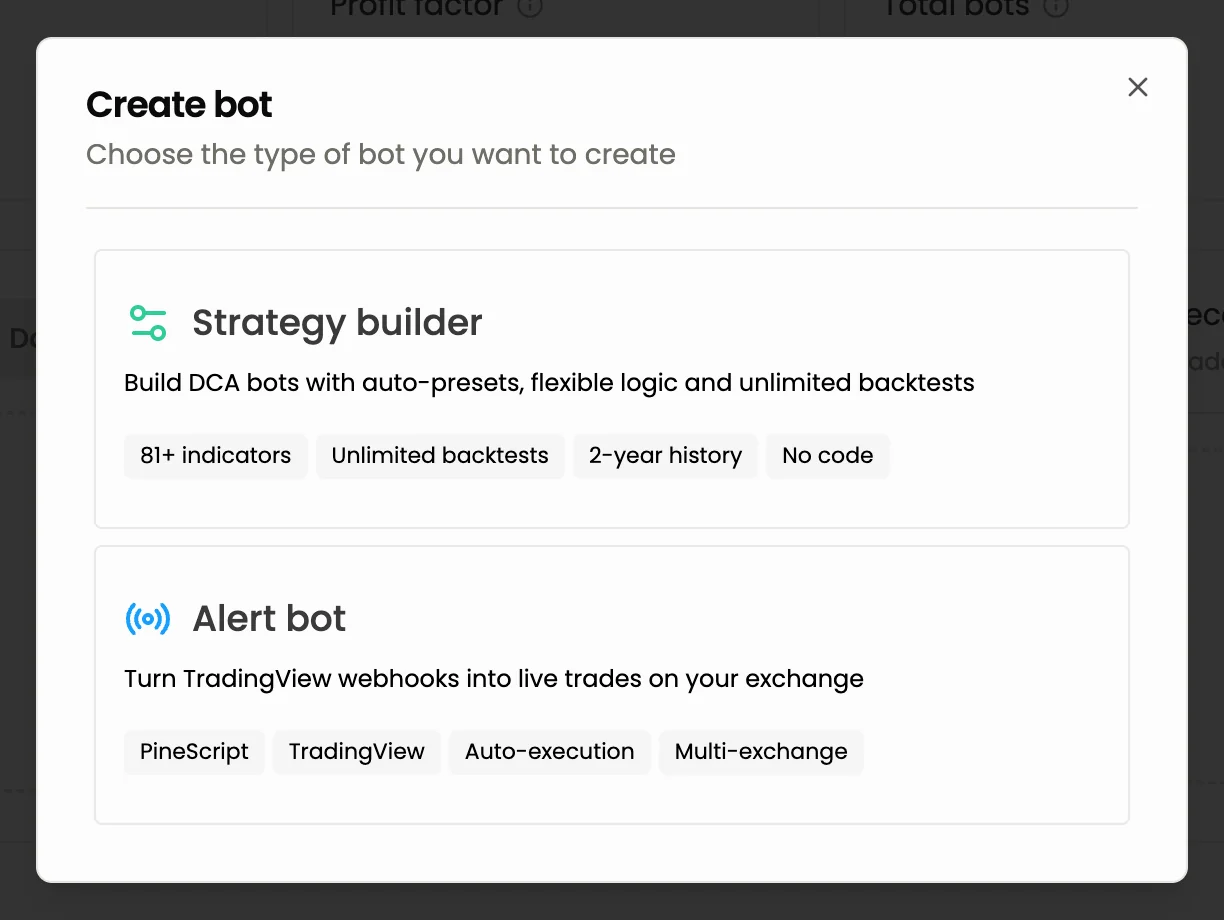
With the form. In the Bots section, press Add new. A window offers the bot type: Strategy builder or Alert bot. Fill in the screen, press Create bot, give the bot a name and press Confirm. The app then opens the bot page.
Every new bot is created switched off, whether you make it in the chat or with the form. It trades nothing until you start it. In the chat, starting it is a second confirmation card, so the agent never makes a bot trade without two clear approvals from you.
Start, stop, edit and delete
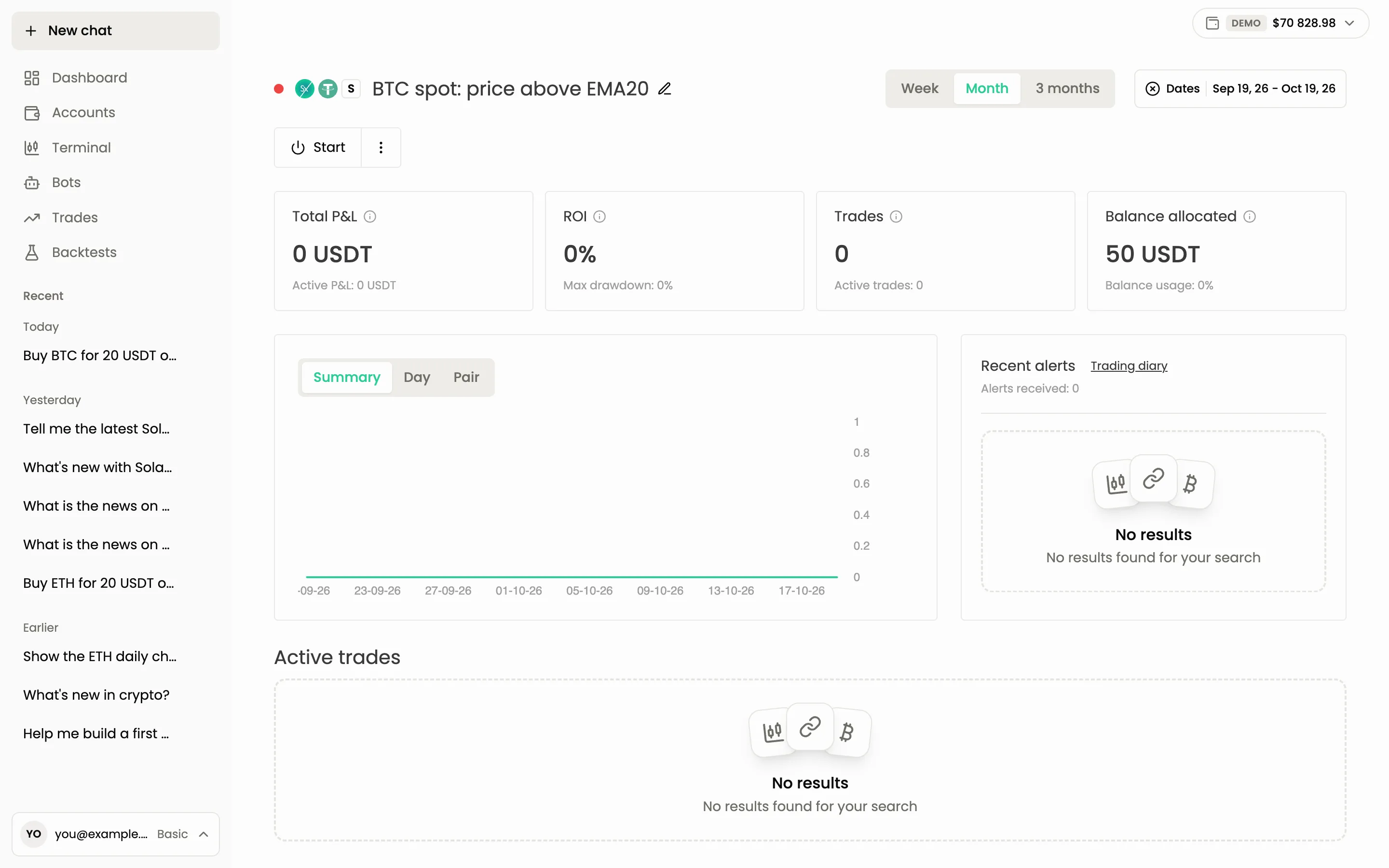
To start a bot made with the form, press Start on its page, or choose Start in its row menu in the Bots table. The row menu also has Stop, Close all trades, Limit close trades, Cancel all trades, Edit bot and Delete bot. Through the agent, you can start, stop, change and delete a bot. Each of these actions needs its own confirmation card.
Deleting a bot cancels its open deals first and cannot be undone. If you only want it to stop opening new trades, switch it off instead.
Open a bot from the table to see its page. It shows the statistics, the Recent alerts the bot received and its active trades. Once a strategy builder bot has checked its rules, the page also shows a Rule check block with the time of the last check and anything that is missing.
Limits
Your plan limits the number of running bots on real accounts: 3 on Basic, 50 on Pro. A bot that is switched off does not count. Bots on the demo account are unlimited on every plan, so you can test a bot there for free. See Plans and limits.
Test before you run
Before you start a bot with real money, run a backtest on historical data and try the bot on the demo account. A backtest is not a promise of future results, but it shows quickly if the idea is badly broken.
Still have a question?
Ask the agent in the app, or write to support in the chat at the bottom right.