
Chat or buttons
Two ways to work in Skyrexio, by words in the chat or with buttons on the classic screens, and how they connect to each other.
Everything in the AI mode can be done in two ways. You can tell the agent what you want, or you can use the same screens a classic trading terminal has, with buttons and forms. You can switch between them at any moment, even in the middle of a task.
The six sections
The sidebar on the left lists six sections under New chat:
| Section | What it is |
|---|---|
| Dashboard | Statistics, recent trades, accounts and assets |
| Accounts | Your exchange and demo accounts |
| Terminal | Charts, the order form and your active trades |
| Bots | The bot table, bot details and the strategy builder |
| Trades | Your trading diary |
| Backtests | Saved and recent backtests |
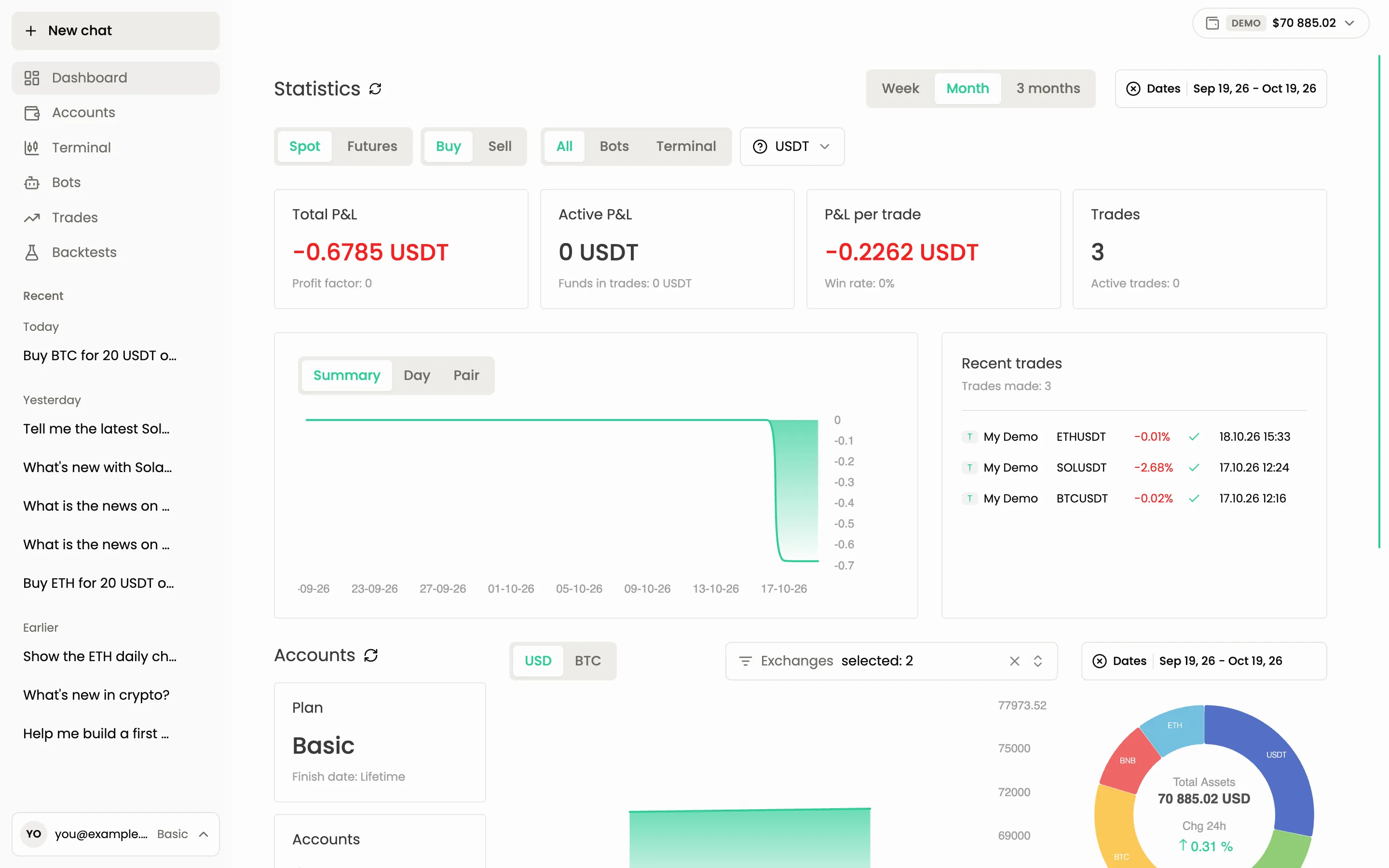
Each section is a regular screen. The chat does the same job by words: "show my balances" instead of opening Accounts, "stop the ETH bot" instead of finding it in the Bots table. Below the six sections the Recent list holds your earlier conversations.
On a narrow screen the sidebar is hidden. A button at the top left opens it as a drawer.
How the two connect
The chat and the screens are not separate worlds. They hand work to each other.
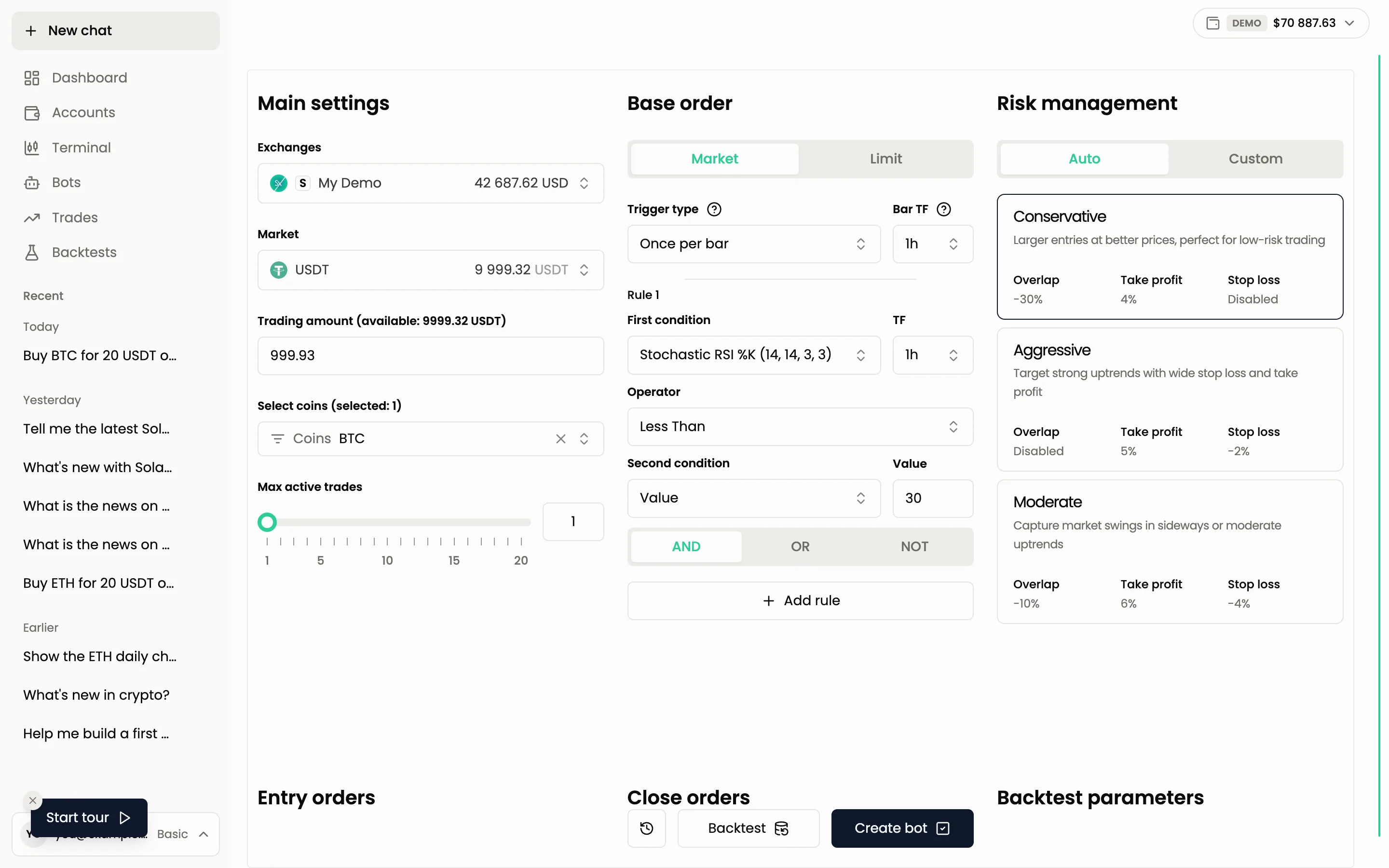
- A draft from the chat opens in the strategy builder. When the agent prepares a bot or a strategy, ask it to open the draft in the strategy builder and fine-tune every field there. See Strategy builder.
- Ask about a trade. When the agent shows your active trades in the chat, the action menu of each trade card has Ask the assistant. It puts a reference to that trade into the message box, so you only type the question, for example why the trade is where it is or what to do next.
- The side panel. Charts, trades, strategies and backtests that the agent mentions open in a panel on the right of the chat. See The side panel.
- Open a screen from the chat. Ask the agent to take you somewhere, for example "open the strategy builder", and it answers with a card that has an Open link to that screen.
When to prefer which
Use the chat when:
- you know the result you want but not where the buttons are;
- you want to compare, summarise or explain: "which of my bots lost the most this month?";
- you need an idea turned into a draft quickly, for example a bot from a few sentences;
- you are not sure about a setting and want it explained.
Use the screens when:
- you want to see many things at once, such as the bot table or the trading diary;
- you adjust many fields by hand, for instance every rule in the strategy builder;
- you do a routine action you know well, like stopping a bot or closing a trade;
- you want to watch a live trade on the Terminal ruler.
A good rhythm is: ask the agent for a first version, open the draft in the builder to refine it, then ask the agent to backtest it.
Confirmation works the same everywhere
In the chat, actions that touch money wait for your decision on a confirmation card: Approve for bots and backtests, Review and confirm and then Approve for a trade. On the screens, placing, closing and cancelling a trade also ask you to confirm in a window. Either way nothing is sent to the exchange until you agree.
Open my BTC trade and tell me how far the price is from the stop loss
Next steps
Still have a question?
Ask the agent in the app, or write to support in the chat at the bottom right.