
Bots
The Bots screen: results, the table of your bots, how to create one, what the row menu does and how to read a bot's own page.
The Bots section is the control room for everything that trades on its own. You see how your bots perform, create new ones, switch them on and off, and open any bot to look at its statistics and trades. What bots are and how they decide is explained in Bots overview.
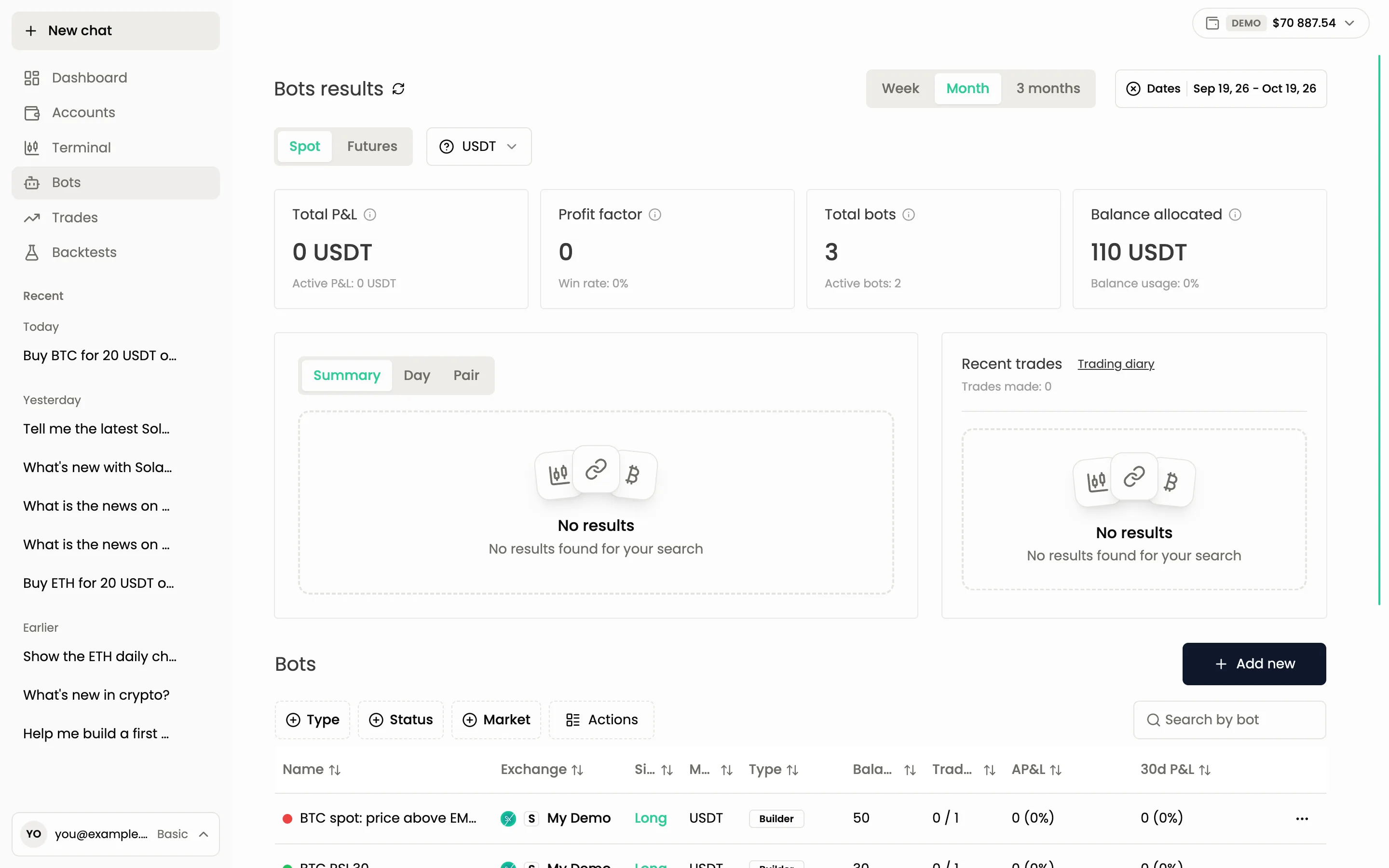
Bots results
The top block summarises all your bots for the selected period. The filters work as on the Dashboard: Week, Month, 3 months or exact Dates, the Spot and Futures switch and the currency selector.
| Card | What it shows | Line under it |
|---|---|---|
| Total P&L | Result of closed bot trades | Active P&L of open ones |
| Profit factor | Gross profit divided by gross loss | Win rate |
| Total bots | How many bots you have, on or off | Active bots |
| Balance allocated | The trading balances you gave to your bots | Balance usage |
Under the cards, the chart has the tabs Summary, Day and Pair, and Recent trades lists the latest bot trades. The Trading diary link next to it opens the full journal, see Trades.
The bots table
The table titled Bots lists every bot. Columns:
- Name, with a colour dot: green when the bot is running, red when it is off.
- Exchange and the account it trades on.
- Side: Long or Short.
- Market: the quote currency.
- Type: Builder for a strategy builder bot and Alert for an alert bot.
- Balance: the amount allocated to the bot.
- Trades: open trades out of the bot's limit.
- In trades: funds currently locked in its trades.
- AP&L: profit or loss of its open trades. 30d P&L: result over 30 days.
Use Search by bot to find a bot by name, and the Status and Market filters to narrow the list. Click any column title to sort.
Creating a bot
Press Add new. A window offers two bot types:
- Strategy builder: you describe entry and exit rules from indicators and patterns, and the platform watches the market. See Strategy builder.
- Alert bot: the bot trades on signals you send it, for example from TradingView. See Alert bot.
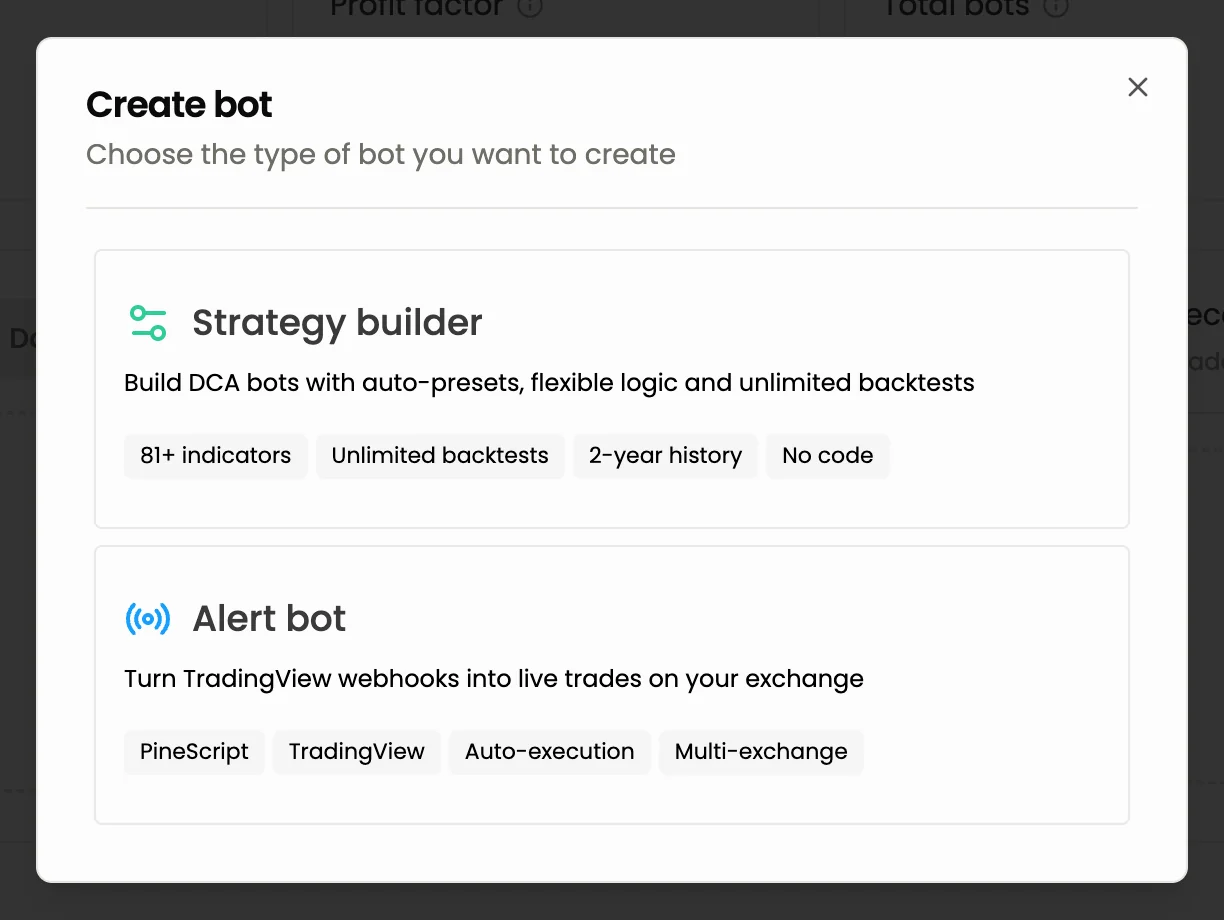
A new bot is created switched off. Switch it on from the row menu or with the on button on its page when you are ready. Running bots count toward your plan limit, see Plans and limits. Bots on the demo account are not limited.
Row menu
The ... menu at the end of a row has:
| Item | What it does |
|---|---|
| Start / Stop | Switches the bot on or off |
| Close all trades | Closes all of the bot's open trades at the market price |
| Limit close trades | Closes them with limit orders instead |
| Cancel all trades | Cancels the bot's active trades on Skyrexio. The assets stay untouched in your exchange account |
| Edit bot | Opens the bot in its builder |
| Delete bot | Deletes the bot. Its open trades are cancelled first: their orders are removed, and anything already bought stays on your account. This cannot be undone |
Bulk actions
Press Actions above the table to select several bots with the checkboxes (Select all selects every bot). A menu then offers Turn on bots, Turn off bots, Close bots trades, Cancel bots trades and Delete bots, applied to the whole selection.
Active trades
Below the table, Active trades lists open trades of your bots as cards with the same ruler and Orders list as in the Terminal. Their menu offers closing by market or by limit, and cancelling.
A bot's own page
Click a bot's name to open its page.
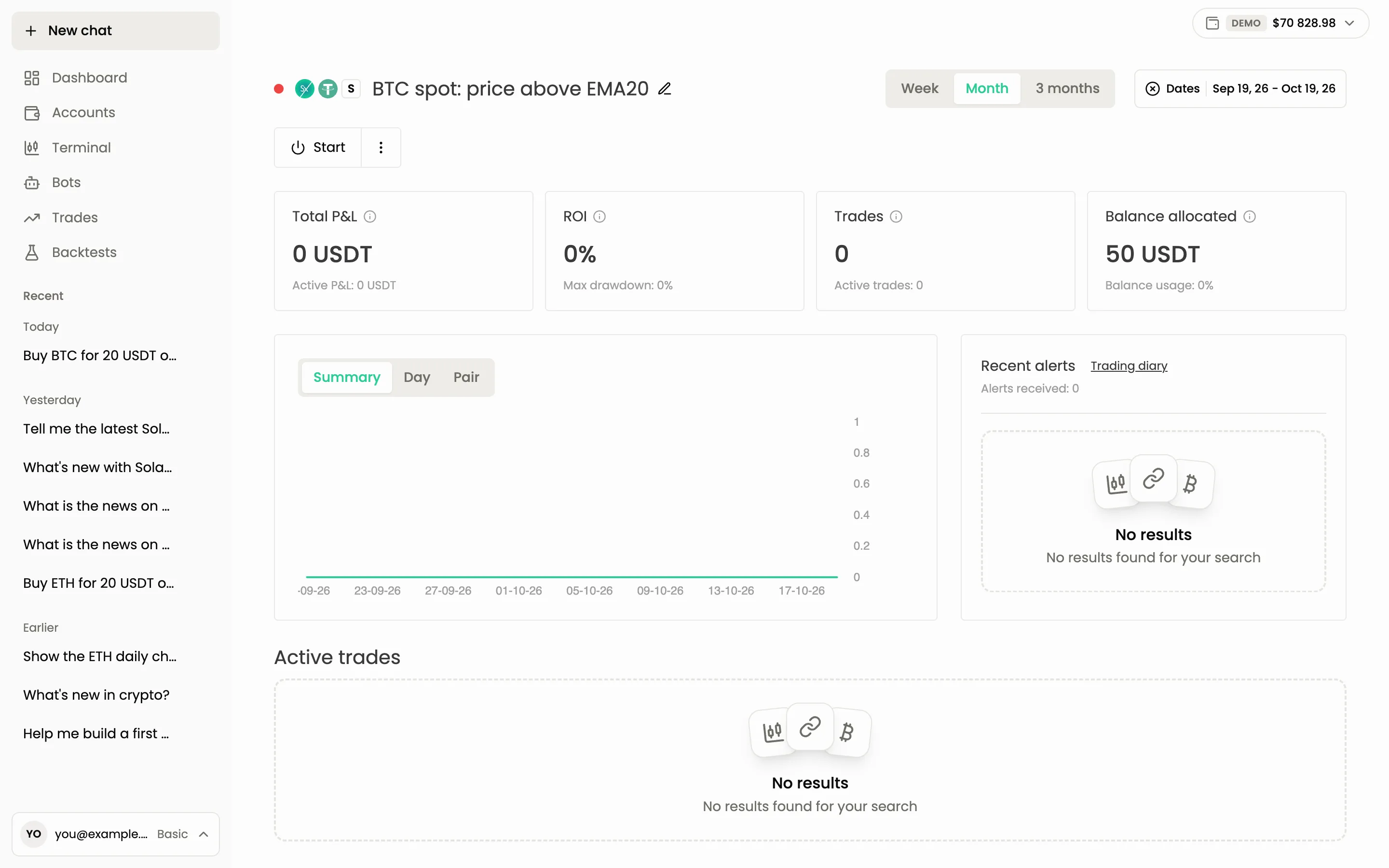
- At the top: the bot's name (click the pencil to rename), the status dot, the on and off button and a menu with the same actions as the row menu.
- Cards for the period: Total P&L (with Active P&L), ROI (with Max drawdown), Trades (with Active trades) and Balance allocated.
- The chart with Summary, Day and Pair tabs.
- Recent alerts: the signals the bot received, with a link to the Trading diary.
- Active trades of this bot only.
Ask the agent instead
The agent can create a bot, switch it on, edit it or delete it. A bot created in chat is created switched off, and starting it is a second confirmation.
Create a bot that buys ETH when RSI drops below 30 and sells at +5%
Which of my bots made the most money this month?
Next: Bots overview, Backtests.
Still have a question?
Ask the agent in the app, or write to support in the chat at the bottom right.