
Terminal
The manual trading screen: pick an account and pair, build an order with take profits, a stop loss and averaging, and manage open trades.
The Terminal is where you trade by hand. One form builds a whole smart trade: an entry, optional averaging orders, one or several take profits and a stop loss. The result is a single trade that you can watch and change later. The concepts behind it are in Smart trade, and the actions on open trades are in Managing trades.
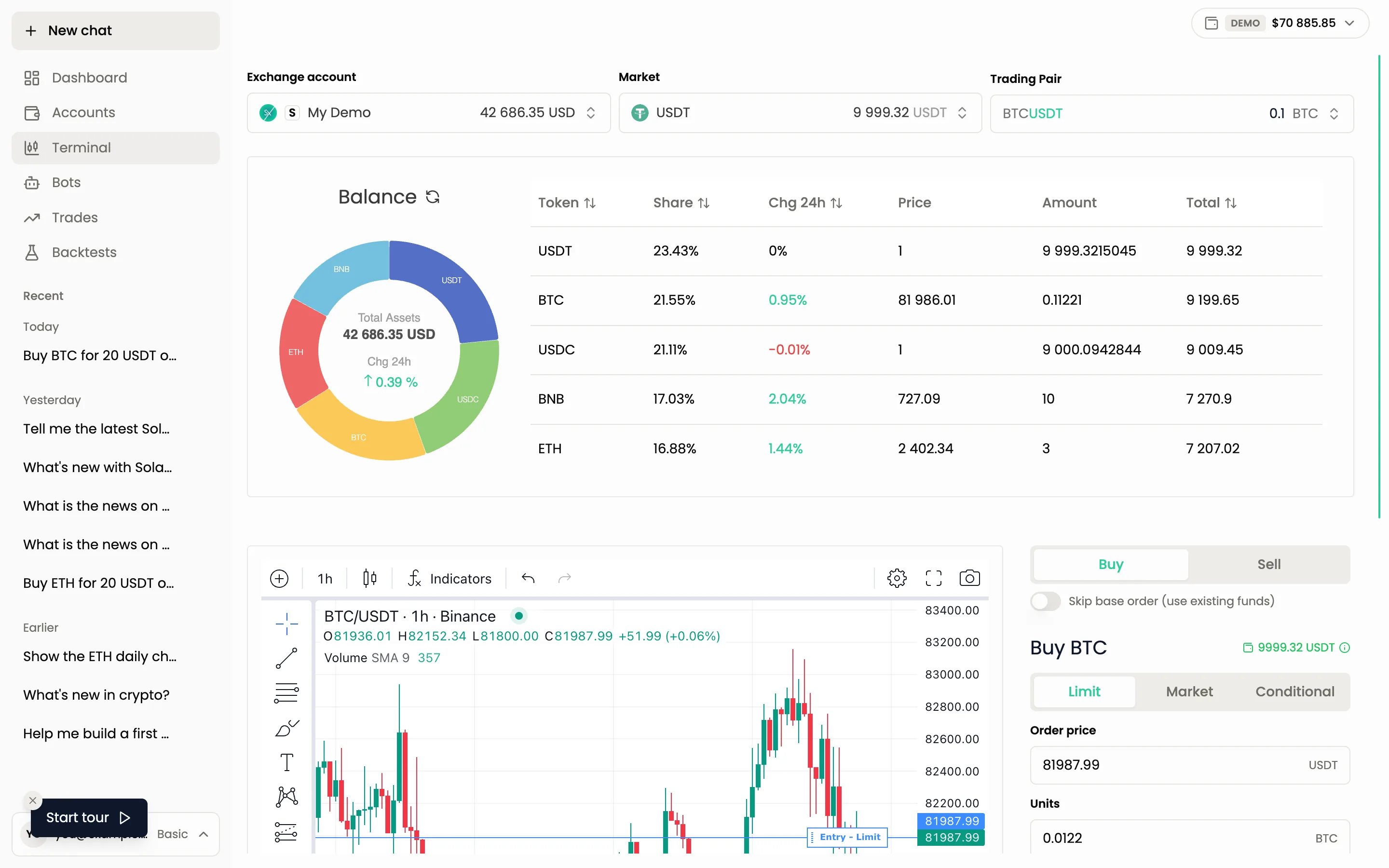
Selectors and balance
Three selectors sit at the top:
- Exchange account: the account to trade on. Spot and futures accounts are marked S and F. Check the Demo badge at the top right: it shows whether you are on virtual or real money.
- Market: the quote currency of the pair, for example USDT, with your free balance in it.
- Trading Pair: the pair to trade, with your balance of the base asset.
Below them, the Balance block shows a ring chart and a table of your assets with Token, Share, Chg 24h, Price, Amount and Total.
Chart
The chart is a full trading chart with drawing tools, indicators and a timeframe switch. The orders you are building appear on it as lines (Entry, Average, TP, SL), so you can see where they sit relative to the price.
Order panel
The panel on the right builds the trade.
- Choose Buy or Sell. On futures these are Long and Short, and you also set Leverage and the margin mode Isolated or Cross.
- Choose the entry type:
- Limit: the order waits at your Order price.
- Market: the order fills at the current price.
- Conditional: the order is placed when the price reaches your Trigger price. Pick which price triggers it: Last, Bid or Ask, and whether the order then goes as Limit or Market.
- Fill Units (the amount of the coin) or Total (the amount in the quote currency). The two fields stay in sync. The percentage slider fills the amount as a share of your free balance.
- Optionally turn on Skip base order (use existing funds) if you already hold the coin and only want take profit and stop loss for it.
Average (DCA)
Open Average (DCA) and press Add entry to add averaging orders that buy more if the price moves against you. Each one has a price and an amount, and a type: Limit, Cond.market or Cond.limit.
Take profit
Open Take profit to set the exit. Press Add target for each target, or Split target to divide the position between several targets. Every target has a Price and a Volume. The Average switch moves your take profit automatically when averaging changes your average entry price, so the profit percentage you chose stays the same.
Stop loss
Open Stop loss to limit the loss. It works as a conditional order (Cond.Limit or Cond.market) with a price and a volume. It also has the Average switch.
A trade without a stop loss has no protection if the price keeps moving against you. On futures, high leverage makes this worse.
Create trade and confirmation
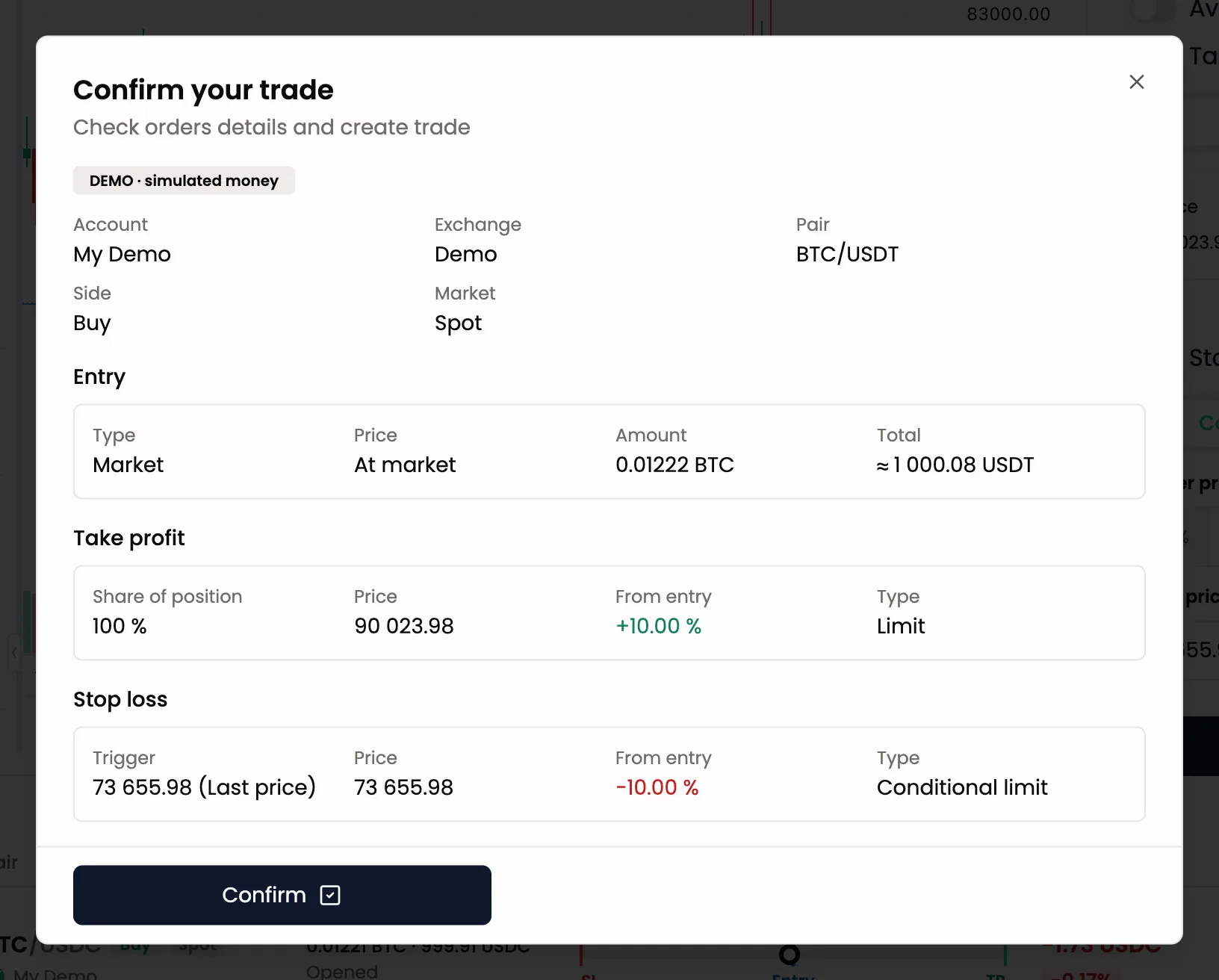
Press Create trade. A Confirm your trade window opens with the whole plan: account, exchange, pair, side, market and leverage, the entry, averaging orders, and the take profits and stop loss with their prices and shares. A banner shows DEMO or REAL. Check it, then press Confirm. Nothing reaches the exchange before you confirm.
Active trades
Open trades are listed below the form. Each card shows the pair, the bot name if it is a bot trade, the entries (for example 1 of 3), volume, when it was opened and the return. A ruler shows the price between your stop loss, entry and take profit targets.

- Show on chart draws the trade's lines on the chart.
- Orders lists every order of the trade with its status. Hide orders closes the list.
- Refresh reloads the card.
The Actions menu on a card has:
- Increase Position and Reduce Position: add funds or take some out.
- Close by Market and Close by Limit: close now at the market price, or with a limit order. Before the entry has filled, the menu offers opening instead.
- Edit: change prices and targets.
- Cancel: cancel the trade.
Closing and cancelling ask for confirmation. In the assistant chat, the card of a trade also has Ask the assistant, which lets you ask about that trade.
Guided tour
The Terminal has a built-in guided tour. Press the tour button at the bottom left of the screen to walk through the selectors, the order panel and the active trades.
Ask the agent instead
The agent builds the same trade from a sentence and shows it on a confirmation card. See Confirmations.
Buy BTC for 100 USDT with 3 take profit targets and a 2% stop loss
Show my active trades and tell me which one is closest to its stop loss
Next: Smart trade, Managing trades, Trades.
Still have a question?
Ask the agent in the app, or write to support in the chat at the bottom right.